Windows 11 KB5048667 24H2 big update, direct download .msu
Windows 11 KB5048667 is now available as part of Patch Tuesday for Windows 11 24H2, and it has a lot of new features. Here's how to download and install it today, and closer look at all the new features. The post Windows 11 KB5048667 24H2 big update, direct download .msu appeared first on Windows Latest
 admin
admin
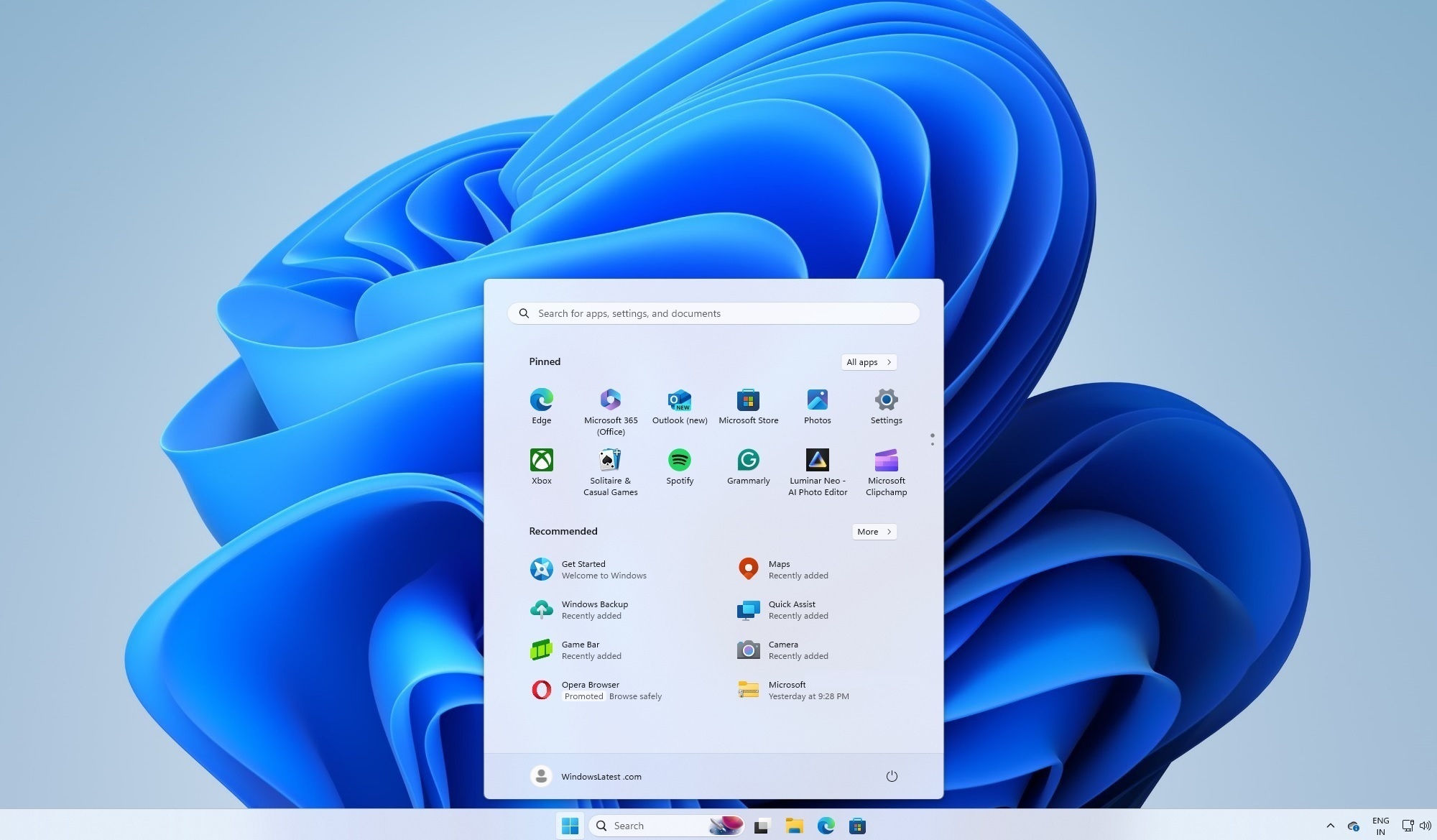
Windows 11 KB5048667 is now available as part of Patch Tuesday for Windows 11 24H2, and it has a lot of new features. A lot, but some are not available widely just yet. This patch is available via Windows Update (Settings), but Microsoft has also published direct download links for KB5048667 offline installers .msu on the Update Catalog.
KB5048667 is a Patch Tuesday release, so it’s marked as “mandatory” at Microsoft’s services, which means it’s supposed to download and install automatically when you check for updates. Even if you do not check for updates, it will download and prompt you for installation automatically as Windows checks for updates in the background.
KB5048667 advances Windows 11 24H2 to Windows 11 Build 26100.2605, and it’s that big December 2024 update we reported recently. As expected, it has several new features. If you check for updates, you’ll see the following December 2024 Patch Tuesday security release:
2024-12 Cumulative Update for Windows 11 Version 24H2 for x64-based Systems (KB5048667)
As soon as you finish installing the patch, you’ll be running Windows 11 Build 26100.2605 (24H2).
Microsoft has also published an update for the .NET framework 3.5 and 4.8.1. For those unaware, these .NET frameworks are updated every month on Patch Tuesday because they power popular Windows apps, and security patches are necessary.
Download Links for Windows 11 KB5048667
Windows 11 KB5048667 Direct Download Links: 64-bit and ARM-64 | Microsoft Update Catalog.
What’s new in Windows 11 Build 26100.2605?
Build 26100.2605 adds a new “personalized offers” as a tailored experience, which basically shows recommendations related to the selection you made in the OOBE (out of the box experience) screen. If you choose “personalized offers”, you might see ads for products and services personalized to meet your needs.
It’s just a new way to show ads in Windows 11, and we strongly recommend turning it off under Settings > Privacy & security.
Microsoft uses your feedback and data to “enhance Windows”, but it’s unclear what is uploaded to Microsoft’s servers.
1. Shortened system tray’s date and time and option to remove bell icon
Microsoft is making some cosmetic changes to the taskbar to reduce clutter and increase space, especially if you have a device with low resolution or small screen size. After today’s Patch Tuesday update, you’ll notice that the date and time have been shortened with year (YYYY) missing from the taskbar.
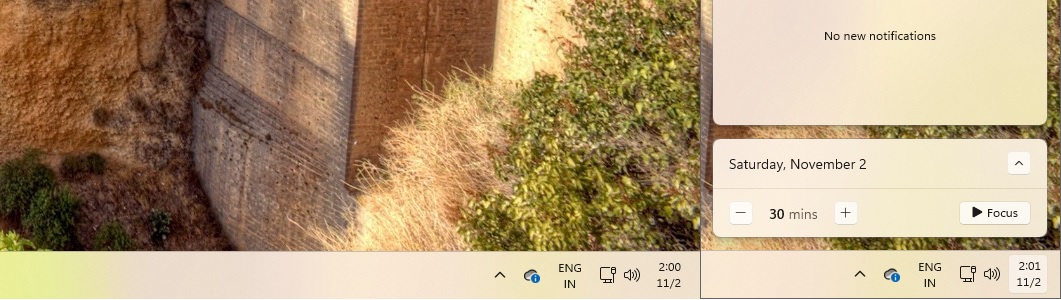
As shown in the above screenshot, the taskbar’s system tray area now has a shortened date and time with seconds and years missing. The space has been reduced, and Windows 11 KB5048667 has turned off the notification bell icon. The idea is to reduce the space and make room for apps on the taskbar.
You can still access the notifications by clicking on the date and time shown on the taskbar.
To bring back the full date and time in Windows 11 Build 26100.2605, open Settings > Date and Time, and turn off Show abbreviated time and date.
It is also possible to bring back the notifications bell icon. To restore that feature, open Settings > System > Notifications, and turn on Show notification bell icon.
Tip: You can also right-click the system tray/bell button to access these settings/toggles.
In addition to these features, Microsoft has fixed an issue where “Automatically hide the taskbar” breaks the search box feature. While it was not broken exactly, the search box appeared as an icon when it was configured to appear as a box.
Another notable change is support for Shift and CTRL shortcuts for the jump lists on the taskbar and Start menu. For example, you can right-click any app to access the jump lists, then use the Shift and CTRL keyboard shortcut. You can open those jump list items as an administrator.
This is useful when you’re working with apps like Windows Terminal.
2. Start menu
Jump lists now work for apps pinned to the Start menu.
This only works for apps that support jump lists. Previously, jump lists were exclusive to the taskbar, but now they appear when you right-click apps pinned to the Start menu in Windows 11 24H2.
3. File Explorer
You can now right-click a file or folder in File Explorer and use the Send to Phone button to quickly send files from your PC to your phone connected using the Phone Link feature.
If the Phone Link is not configured already, you’ll be prompted to do so when you click the Send to Phone button.
File Explorer is also getting a couple of bug fixes.
For example, a bug has been fixed where some items have an unexpected amount of space on the left pane. Another bug has been fixed where the search box does not render in File Explorer. In other words, the search box does not appear or is cut off when you make the File Explorer window smaller.

The post Windows 11 KB5048667 24H2 big update, direct download .msu appeared first on Windows Latest