Microsoft reveals how to verify Windows 11’s Secure Boot update, what to do if your PC missed it
The Secure Boot 2011 certificates are expiring, but your old PC will still boot. Most modern PCs already got the 2023 update automatically. For older hardware, Windows 10 users, and unsupported Windows 11 installs, here is what changes and what you should do. The post Microsoft reveals how to verify Windows 11’s Secure Boot update, what to do if your PC missed it appeared first on Windows Latest
 admin
admin
If you have a Windows PC running on older hardware, particularly something from before 2018, chances are you’ve been wondering what the Secure Boot certificate rollout means for you. Most modern PCs are getting the Secure Boot 2023 update automatically through Windows Update, and for those regular users, there is nothing to do. But a portion of the Windows install base is running on hardware where that automatic update will never arrive, and it is worth understanding what that means for your PC and your security.
For home users on older hardware, Windows 10 users, and anyone who installed Windows 11 on an unsupported PC through the registry bypass, this article tells what happens to your PC if you don’t get the Secure Boot 2023 update. If you are on a relatively recent PC and have already seen a green checkmark in Windows Security, you can stop reading here.
Your old PC will still boot. Nothing breaks on June 24
The most important thing to understand is that the expiration of the Secure Boot 2011 certificates does not cause your PC to stop booting. Microsoft has confirmed this. According to the official Microsoft support page: “If your device reaches the expiration date without the new certificates, it will still start and operate normally. Standard Windows updates will continue to install.” The certificate expiration does not trigger a shutdown, a forced reboot loop, or any error message during startup.
What it does affect is your PC’s ability to receive future boot-level security updates. Specifically, devices without the 2023 certificates will no longer receive updates to the Windows Boot Manager, Secure Boot databases, revocation lists, or mitigations for newly discovered boot-level vulnerabilities. We covered what Microsoft says happens when you ignore the deadline in detail, and the bottom line is that the degradation is gradual, not sudden.
Why some PCs cannot get the Secure Boot update
OEM support has a cutoff
The Secure Boot certificate update is not something Microsoft can push through Windows Update on every device. It requires the device firmware to accept and store the new certificates, and that process depends on compatibility work done by the PC manufacturer. Dell, for example, has publicly confirmed that it is not providing BIOS updates for platforms with an End of Service Life before January 1, 2026, according to Dell’s own Secure Boot transition FAQ. A 2019 Dell Inspiron, for instance, may never see a BIOS update that allows it to accept the 2023 certificates cleanly because Dell has discontinued support for that model.
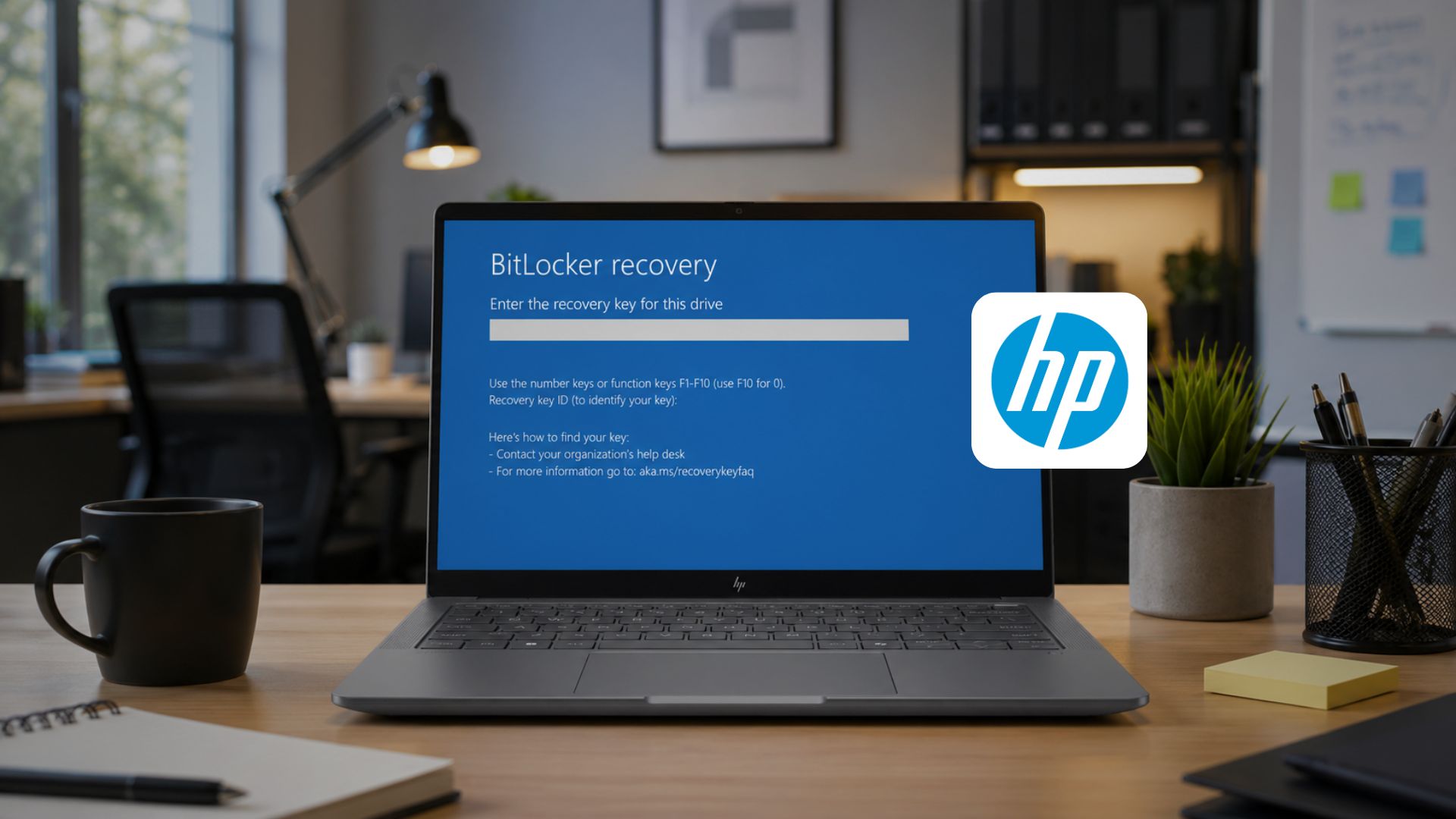
HP, Lenovo, ASUS, and other major manufacturers have similar cutoffs. We documented issues across HP and Dell devices where firmware problems either blocked the update or caused BSODs and BitLocker recovery loops when the update was attempted. For devices where the OEM has already discontinued BIOS support, there is simply no path to receiving the certificate update automatically.
Legacy BIOS and CSM mode
Some older PCs, particularly those from the early UEFI era or machines running in Compatibility Support Module (CSM) mode, do not use UEFI Secure Boot at all. These devices are booting the way PCs did before Secure Boot existed. For them, the certificate update is entirely irrelevant because there are no Secure Boot certificates to update. Windows may or may not show a Secure Boot section in Windows Security on these machines, but if the system is running in Legacy BIOS mode, Secure Boot was never active in the first place.
Windows 11 is installed on unsupported hardware
A specific scenario worth addressing is Windows 11 installed on hardware that does not officially support it, usually through the registry bypass method that disables the TPM 2.0 and CPU checks during installation. If you have a 6th or 7th-generation Intel PC, or an early Ryzen 1000 system, running Windows 11 this way, you may have noticed that the Secure Boot section is missing entirely from the Windows Security app, or you see a “Standard security hardware not supported” message where device security details should appear.
My dad’s PC, a Lenovo ThinkCentre mini-PC with an i3 6th-generation CPU and 8GB of RAM, which was on Windows 10, was upgraded to Windows 11 by bypassing OS requirements. In case you are wondering, Windows 11 runs absolutely well in this old hardware, but this PC doesn’t show Secure Boot in Windows Security.
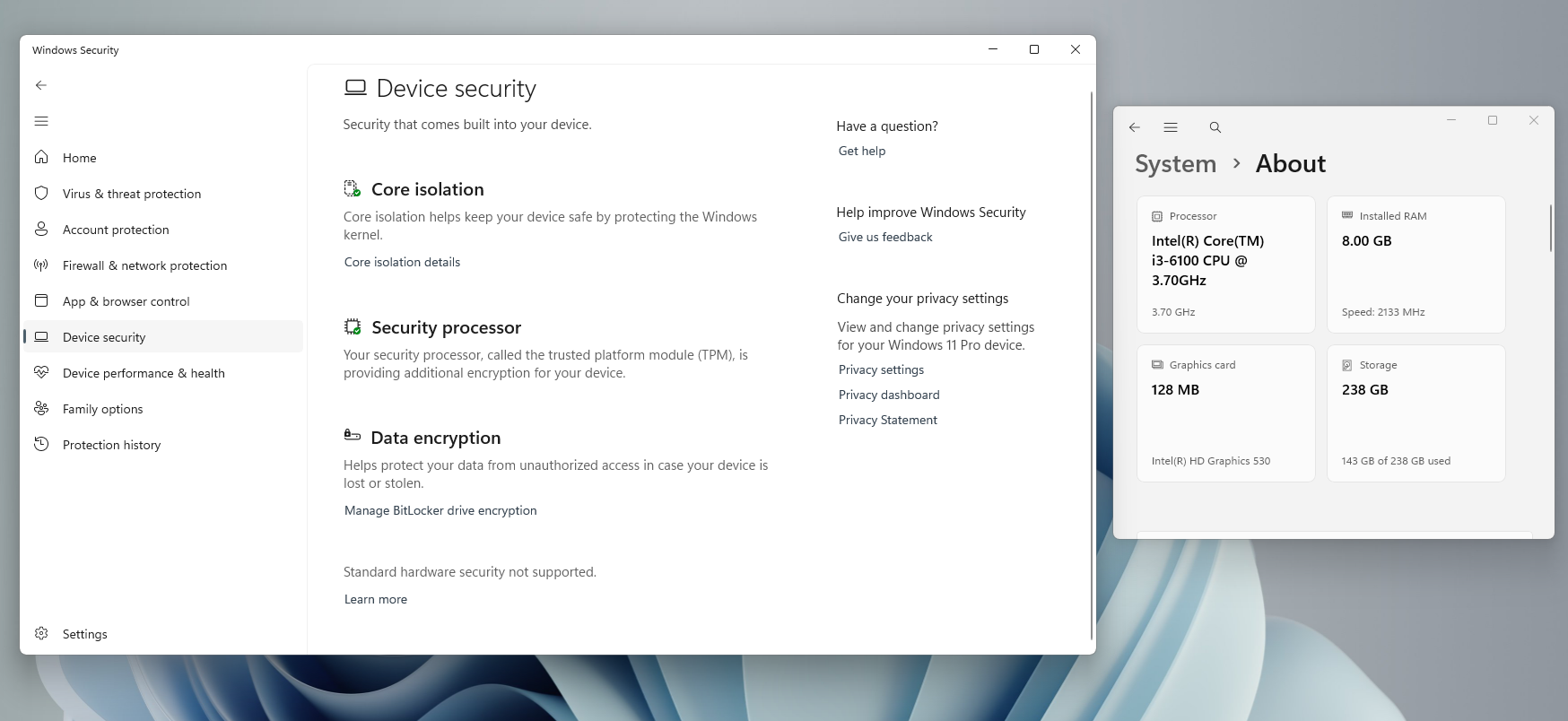
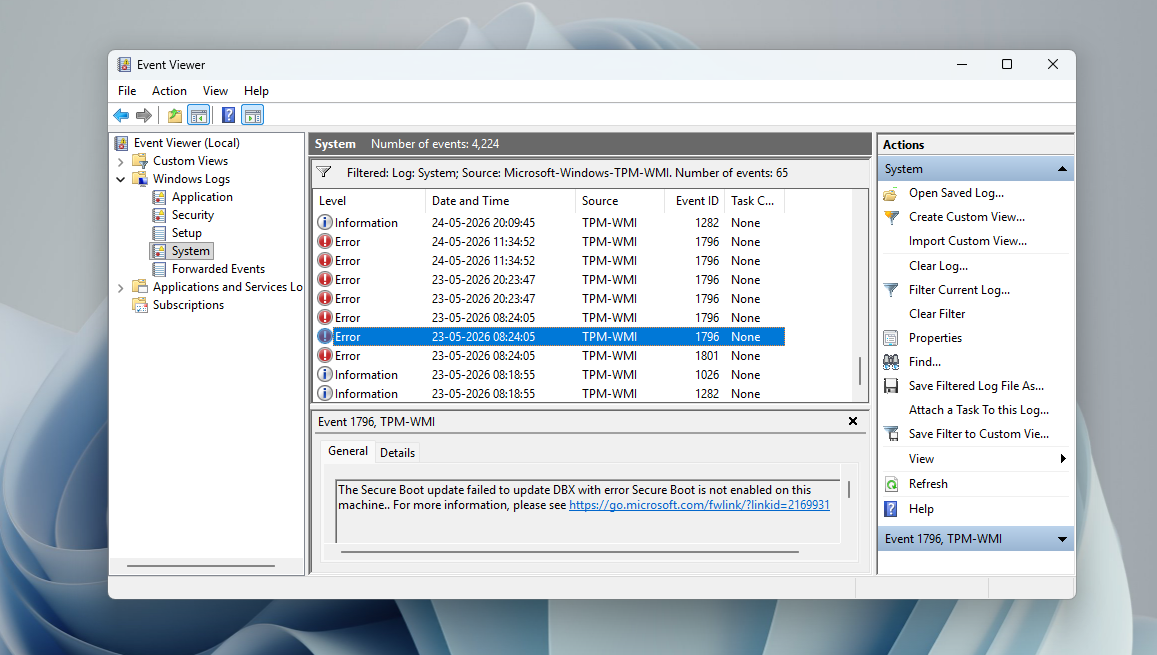
The reason is that PCs like this either lack TPM 2.0 or have Secure Boot disabled or in a partial state because the bypass installation did not enforce those requirements. When the Windows Security app checks for Secure Boot status, it uses the firmware reporting that Secure Boot is properly enabled. If it is not, the section is suppressed or shows an error. The Secure Boot certificate update requires Secure Boot to be active in the firmware. If it is not, the update process skips the device. Microsoft confirmed during the Secure Boot AMA session that the update process is smart enough to skip devices running Legacy BIOS and machines where Secure Boot is disabled, rather than attempting an update that would break them.
Note that Secure Boot certificates also do not require TPM 2.0 to function. The two are separate systems. TPM 2.0 handles things like BitLocker key storage and Windows Hello attestation, while Secure Boot is a firmware-based boot chain verification mechanism. A device can have the 2023 Secure Boot certificates without having TPM 2.0, and TPM 1.2 devices are technically capable of receiving the Secure Boot certificate update if the firmware otherwise supports it. The problem for older bypassed Windows 11 installs is usually that Secure Boot is disabled or not configured correctly, not that TPM is missing.
What is the real security risk if you don’t receive 2023 Secure Boot updates?
Without the 2023 certificates, your PC cannot receive future revocation updates to the Secure Boot DBX (Forbidden Signature Database). The DBX is the list of bootloaders and boot managers that are known to be compromised or vulnerable. When Microsoft discovers that a specific bootloader version is being exploited, it adds it to the DBX and distributes that revocation through Windows Update. A device with only the 2011 KEK certificate can only process DBX updates signed with the 2011 key, which expires June 24, 2026.
The most well-known real-world example is BlackLotus, a UEFI bootkit discovered in 2023 that exploited vulnerabilities in older Windows bootloaders (CVE-2022-21894 and CVE-2023-24932) to bypass Secure Boot on fully updated Windows 11 systems. The attack worked because the old trusted bootloader signatures had not been revoked at the firmware level. Without the ability to push new DBX revocations, a device that misses the 2023 certificate transition becomes permanently frozen in its ability to blacklist newly discovered malicious bootloaders.
For most home users with older hardware, this is a theoretical risk and not an immediate emergency. Bootkit attacks are complex, targeted, and largely aimed at enterprises, governments, and high-value individuals. But the risk is real, and it will grow over time as more bootloader vulnerabilities are discovered and the unpatched population of 2011-certificate devices gets better documented by attackers.
There is no reason for you to panic, but that doesn’t mean that you should ignore this permanently. Businesses, however, face compliance requirements that make this non-optional.
What you should do if you are not getting Secure Boot updates (depending on your situation)
If you’re on Windows 10 with a supported OEM
Windows 10 under the Extended Security Updates program (ESU) is receiving the same Secure Boot certificate update as Windows 11. Microsoft confirmed that the update code is identical across both operating systems. If your Windows 10 PC is enrolled in ESU and receiving updates, and your OEM has published a compatible BIOS update, the certificate update should arrive through normal Windows Update. The May 2026 Windows 10 update KB5087544 included Secure Boot certificate status reporting, so you can check your status in the Windows Security app if you are on that update or later.
If your Windows 10 PC is not enrolled in ESU and is no longer receiving any updates, it will not get the certificate update through Windows Update either. At that point, the only path forward is either enrolling in ESU, upgrading the hardware, or accepting that the device will remain on 2011 certificates indefinitely.
If you’re on an older OEM PC with no BIOS update available
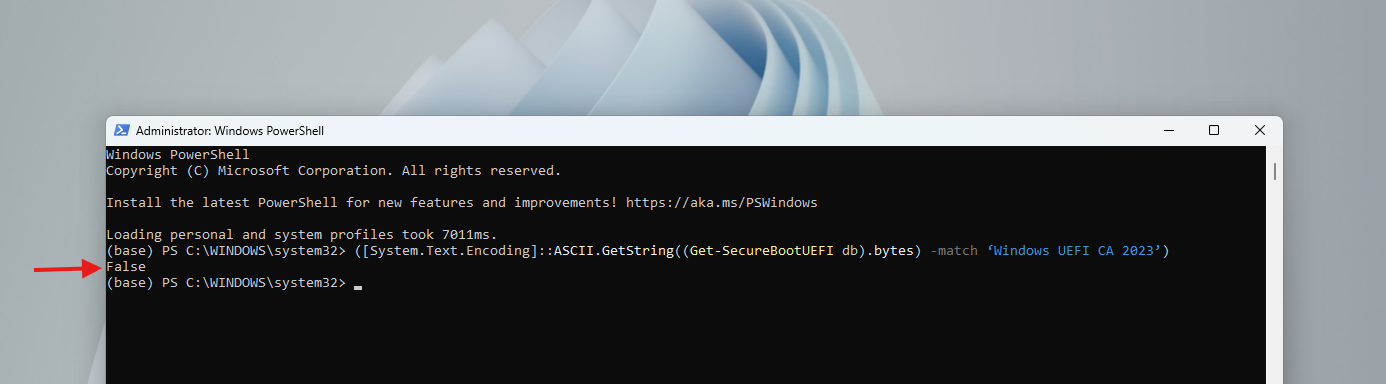
If your PC’s manufacturer has not published a BIOS update for the Secure Boot 2023 transition, and the device is already on the temporarily paused or no data bucket in Microsoft’s confidence database, there is no software fix available. The firmware does not support the new certificate format. You can verify your current status by checking the Windows Security app under Device Security. A red icon under Secure Boot, combined with no BIOS update on the manufacturer’s support page, is a reliable signal that the device is in this category.
The practical options here are limited. You can continue using the device knowing that it will not receive future boot-level security revocations. You can consider whether upgrading to a newer PC makes sense for other reasons as well. Or if you’re technically confident, you can look into whether your motherboard BIOS has a community-supported update path, though we wouldn’t recommend it.
If you’re running Windows 11 on unsupported hardware
If you installed Windows 11 on very old hardware using the registry bypass, and Secure Boot is either disabled or not properly configured, the Secure Boot 2023 update will not arrive on your machine. The realistic options are staying on the current unsupported configuration, trying to properly enable Secure Boot in UEFI if the firmware supports it, or upgrading to supported hardware (which is what we would recommend at this point).
How to check your current Secure Boot status
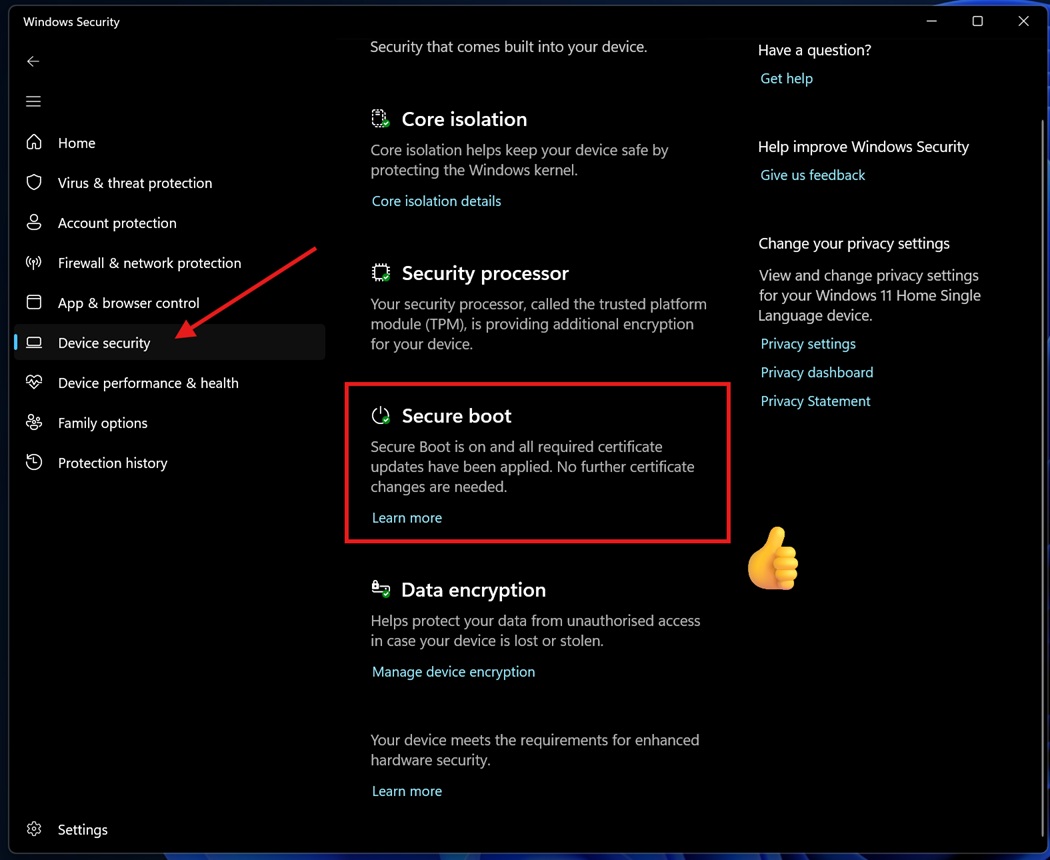
The easiest check is in the Windows Security app. Open it, go to Device Security, and look for the Secure Boot section. From April 2026 update, Windows 11 has been showing a green, yellow, or red badge indicating the state of your Secure Boot certificates.
Green means the 2023 certificates are already applied.
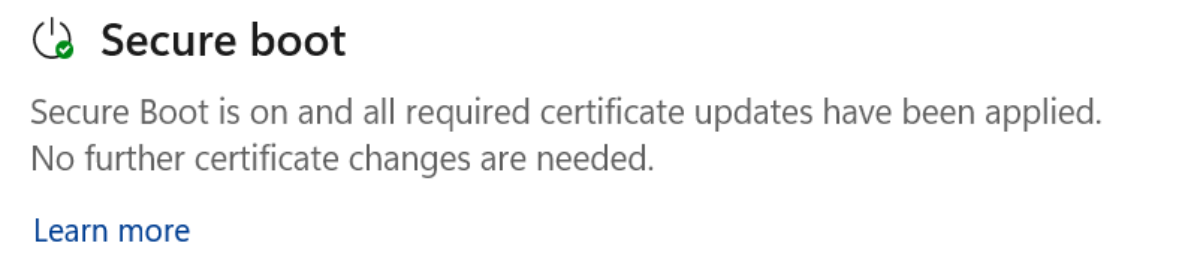
Yellow means the update is pending or your device needs more data from Microsoft before it can proceed.
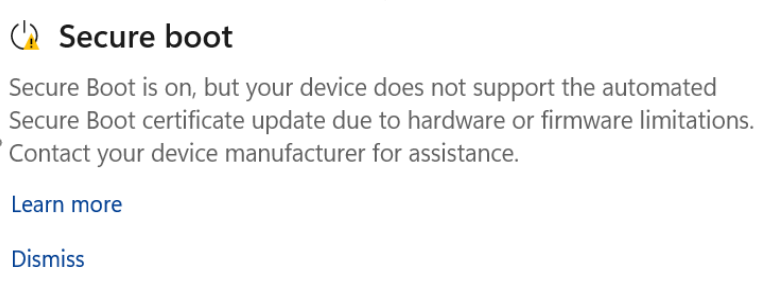
Red means there is a specific issue, usually a firmware incompatibility, that is blocking the update.
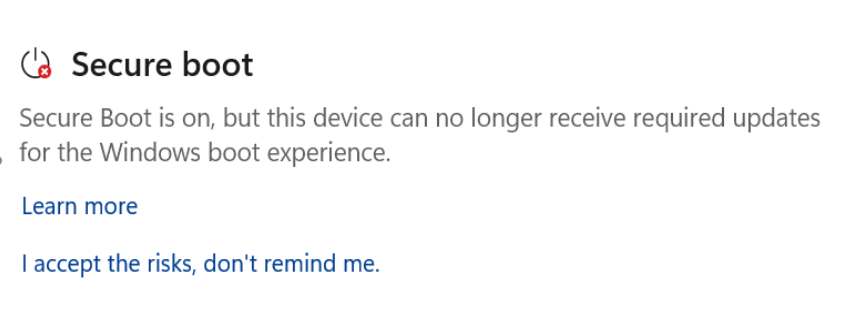
If the Secure Boot section is completely missing from the Device Security page, your PC either has Secure Boot disabled in firmware, is running in Legacy BIOS mode, or was installed on hardware where Secure Boot was not a required component of the install. As I said earlier, on those machines, the certificate update is not applicable regardless of the Windows version.
For a more detailed check, you can also open System Information (msinfo32) and look for the “Secure Boot State” line under System Summary. It will report On, Off, or Unsupported. We published a full guide on manually verifying Secure Boot 2023 certificate status if you want to dig deeper using PowerShell or registry checks.
Your old PC will continue working even without Secure Boot 2023 updates
For most people on older hardware, the Secure Boot 2023 transition is only a security gap. Your PC will keep running, Windows updates of the regular kind will keep arriving, and day-to-day use is unaffected. The gap is that boot-level threats discovered after the 2011 certificate stops being useful, will not be mitigated on your device at the firmware level.
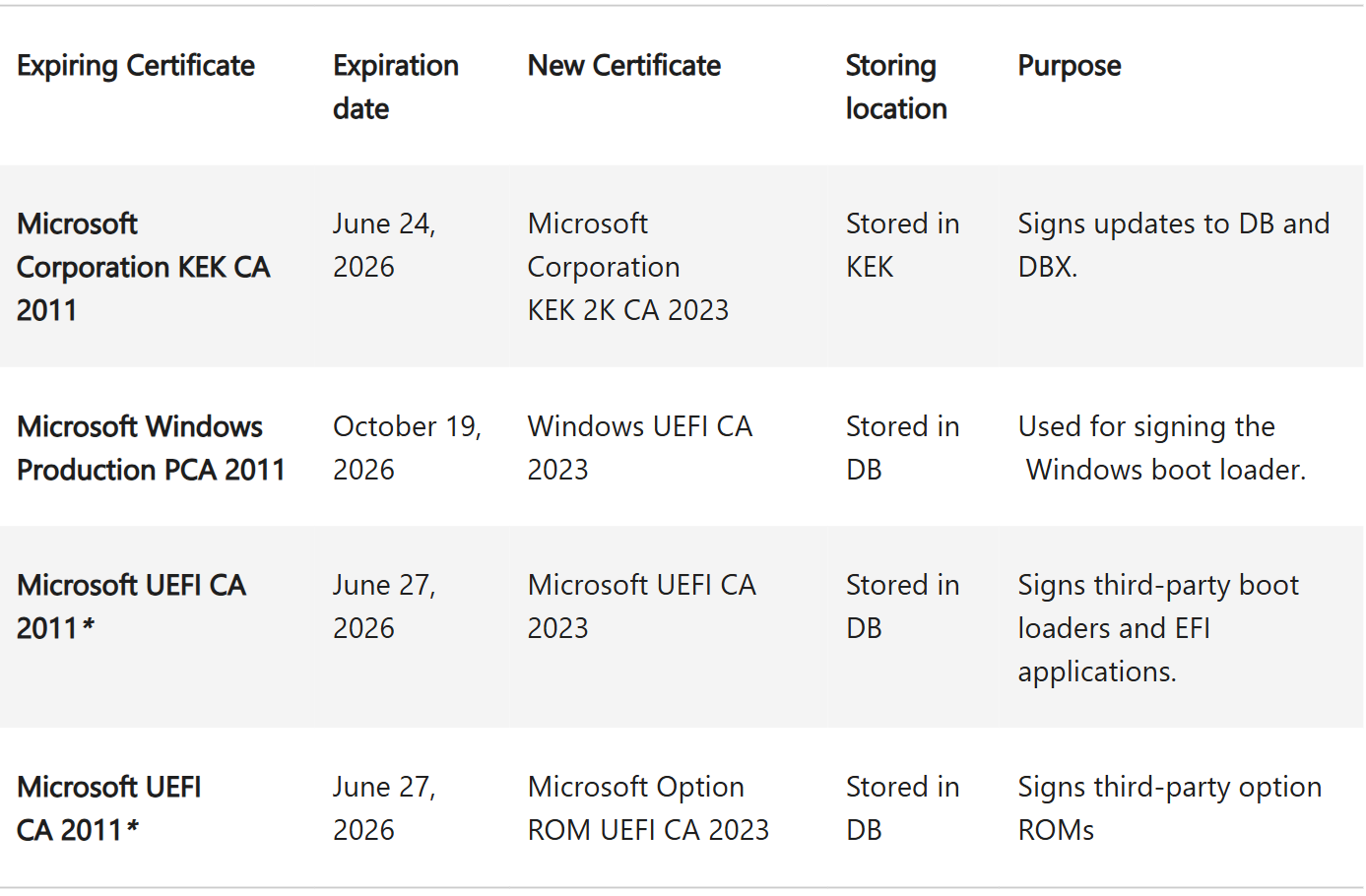
Businesses need to act though. Many cyber insurance policies and regulatory frameworks require endpoint devices to be receiving active security updates at every layer, and the inability to receive DBX revocations is a huge gap in that coverage. Microsoft has held multiple AMA sessions specifically to help IT administrators work through this transition, and the guidance for enterprise customers with older unresponsive devices is to document them as exceptions with compensating controls or plan for hardware replacement.
If you want to check whether there is a BIOS update available for your specific older PC, Dell, HP, Lenovo, and ASUS have all published support pages specifically for the Secure Boot 2023 transition. Those pages are linked from Microsoft’s official aka.ms/GetSecureBoot resource, which also has the complete set of scripts and diagnostic tools if you want to do a thorough audit of your device’s Secure Boot state.
The post Microsoft reveals how to verify Windows 11’s Secure Boot update, what to do if your PC missed it appeared first on Windows Latest