Microsoft confirms Windows 11 Search will find your apps, not Bing results, even if you make typos
Windows 11 Insider build 26300.8687 makes Search more forgiving for apps, handling typos, dropped letters, and partial words. Local files now surface before web results, and Settings ranking is improved. A toggle to disable Bing in Search entirely is also in testing, alongside Search improvements already live in the June 2026 update. The post Microsoft confirms Windows 11 Search will find your apps, not Bing results, even if you make typos appeared first on Windows Latest
 admin
admin

Windows 11 Insider Experimental Preview Build 26300.8687, released on June 12, 2026, brings a long-overdue fix to Windows Search, which can now find apps even when your query has typos, dropped letters, extra characters, or is just a partial word. Typing “utlook” can now show Outlook. Settings search is also getting ranking improvements, pushing more relevant results to the top.
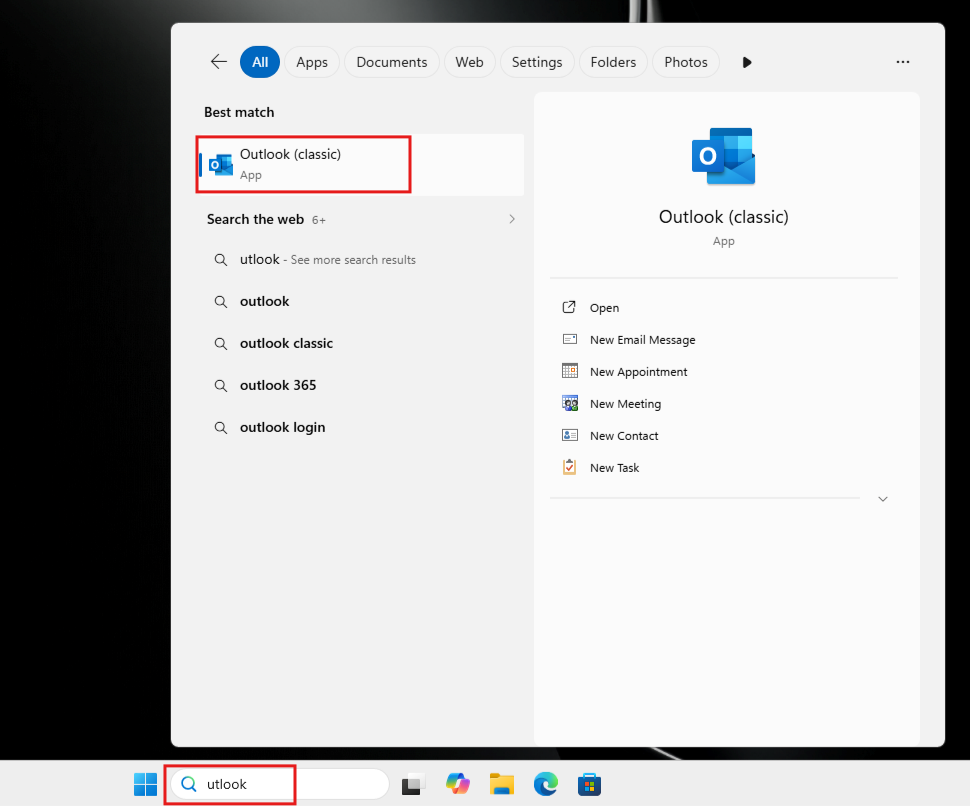
Windows Search has had this problem for years, and the inconsistency made it so aggravating. But, of course, what made everyone despise Windows 11’s Search is that this same Search bar that couldn’t tolerate a single dropped letter in an app name would cheerfully display a spell-corrected Bing web result at the top. Fixing this has been one of the most-requested changes from Windows users, and it is now arriving through Insider testing.
These changes are also part of a larger set of Search improvements that Microsoft has been making over the past few months, some of which are already live for all Windows 11 users via the June 2026 update.
Windows Search now correctly finds your apps and files
Build 26300.8687 targets the part of Windows Search that specifically handles apps.
Microsoft says Search is now better at addressing typos, dropped letters, extra letters, and partial words for apps. Before this, Windows Search applied spell-check only to Bing-powered web queries, which is why a mistyped app name would return a corrected Bing result at the top while the installed app didn’t show up. Now, that same tolerance is applied locally.
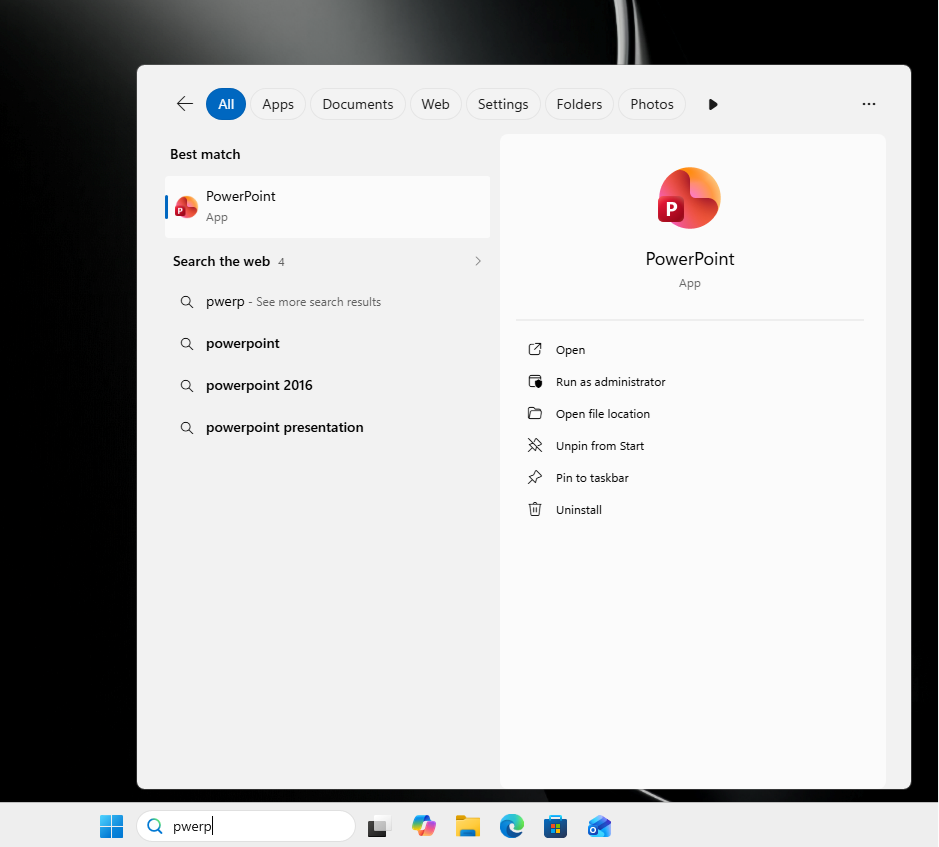
We tested it. Typing “pwerp” in Windows Search on the Insider build immediately showed PowerPoint as the Best match, with the correct app icon and Open, Run as administrator, and Pin to taskbar options.
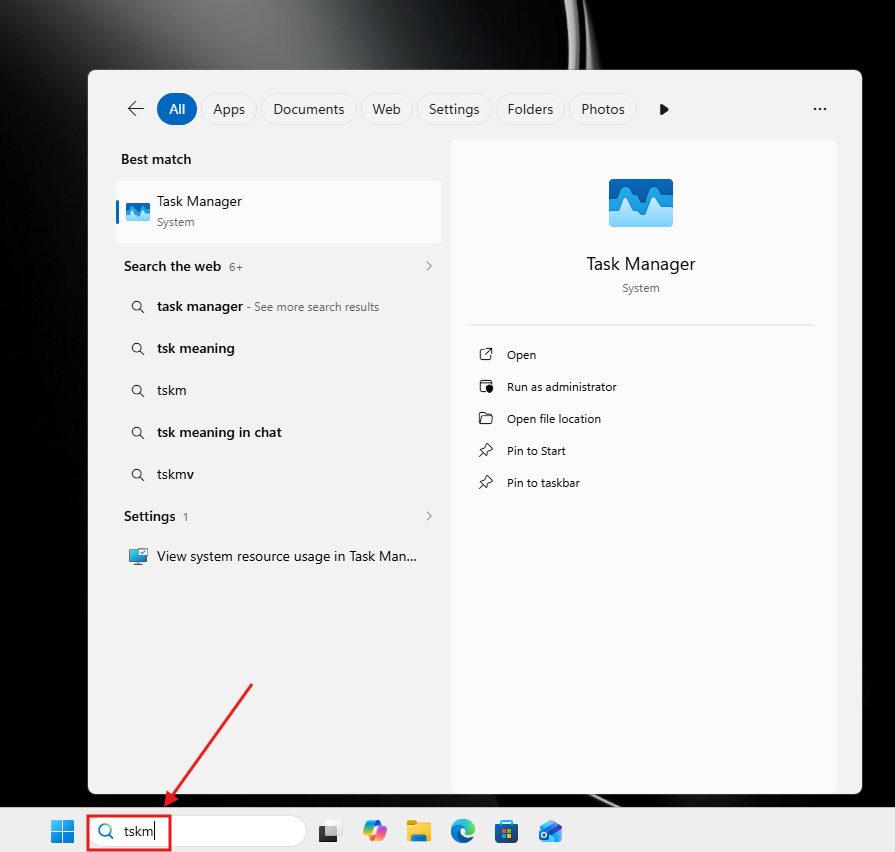
Typing “tskm” which has both a dropped letter and extra letters, showed Task Manager as the Best match. Neither query looks anything close to the intended app name, yet Search got it right both times.
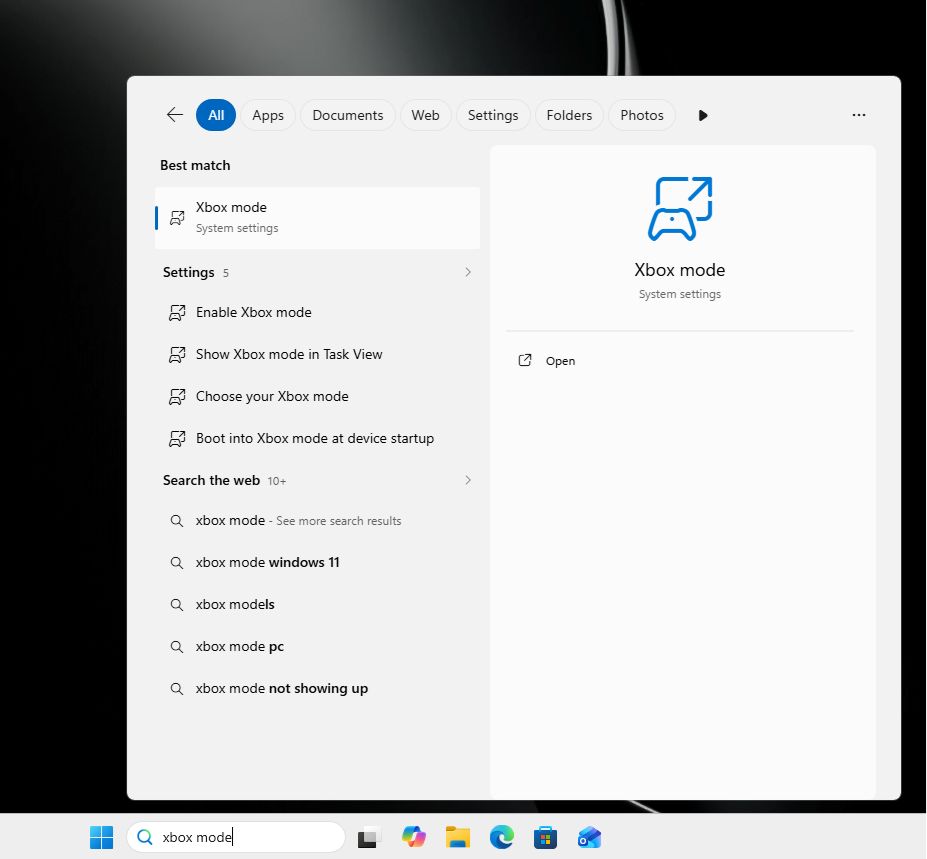
Settings results in Search are improving
Microsoft says, “We’ve made ranking improvements to help more relevant settings appear higher in results.”
Earlier, searching for a setting in Windows has always been a gamble because the ranking would sometimes show adjacent or loosely related results above the one you were actually looking for. With this fix, the most relevant Setting should now appear first.
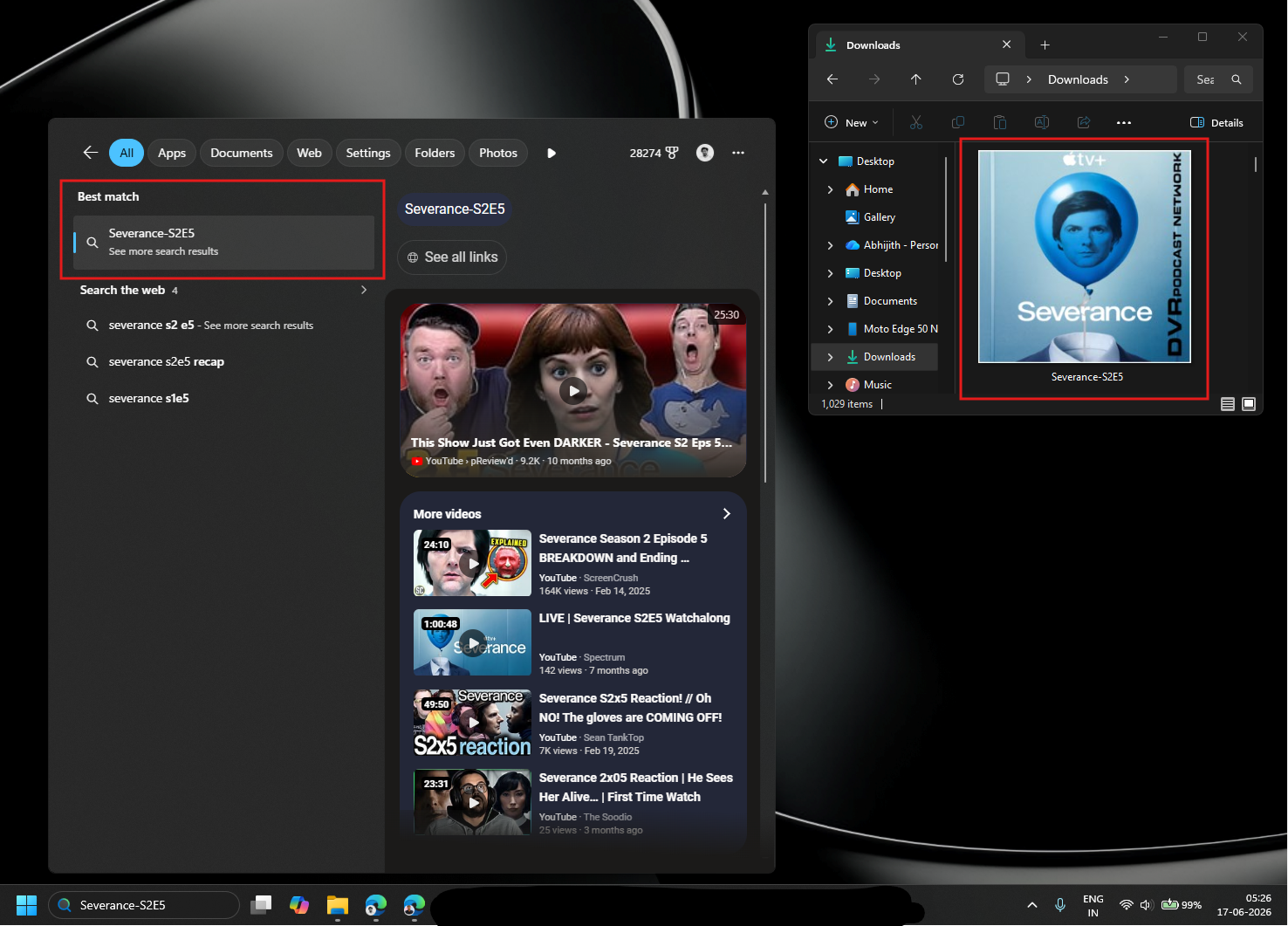
On the local file search side, we have a bigger improvement. I had a file named “Severance-S2E5” saved in the Downloads folder, which I added intentionally to trick Windows, as it’s already a popular web series with that particular episode being a highly searched keyword.
Searching for that name in the current stable Windows 11 build expectedly returned no local file at all. The “Best match” section showed the web search suggestion, and the rest of the panel was packed with YouTube videos about the Severance TV series on Apple TV+.
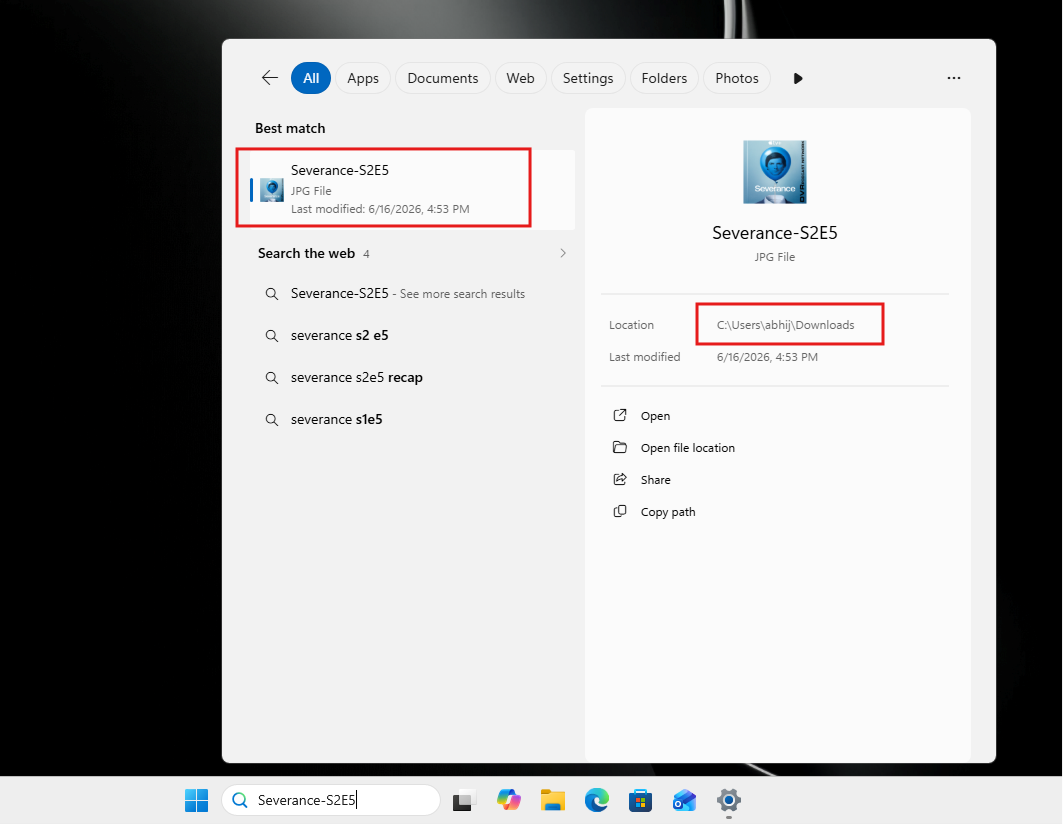
The same search on the Insider build with build 26300.8687 proved to me that Windows Search has improved. The “Best match” immediately showed “Severance-S2E5 – JPG File” with the file location and last modified date. The file shows first, before any web results. Web suggestions are still present below, but the local file is highlighted in the preview.
Microsoft’s Partner Director of Design for Windows, March Rogers, confirmed on X that local files are now being prioritized in the new search updates. Rogers also said that web suggestions can be turned off entirely. Which brings us to what most users have wanted for years.
You will soon be able to turn off web results in Windows Search
The other major complaint about Windows Search, beyond the typo problem, has been Bing itself. Even when searching for something clearly on your PC, web results crowd the top of the list.
As Windows Latest reported earlier this month, Microsoft is testing a new setting that lets you switch Windows Search to run locally. When turned on, Search shows only what is on your PC, with no Bing results, and no Microsoft Store listings. The Store toggle can also be switched off independently, for users who do not want Search to show apps they haven’t installed yet.
Right now, turning off Bing in Windows Search requires editing the Windows Registry, which is not a step most users should have to take. Microsoft building a proper toggle into Settings makes this accessible without any technical workarounds. In response to a user on X, March Rogers replied, “Local files are prioritized in the new search updates. Also if you want you can turn off web suggestions entirely.”
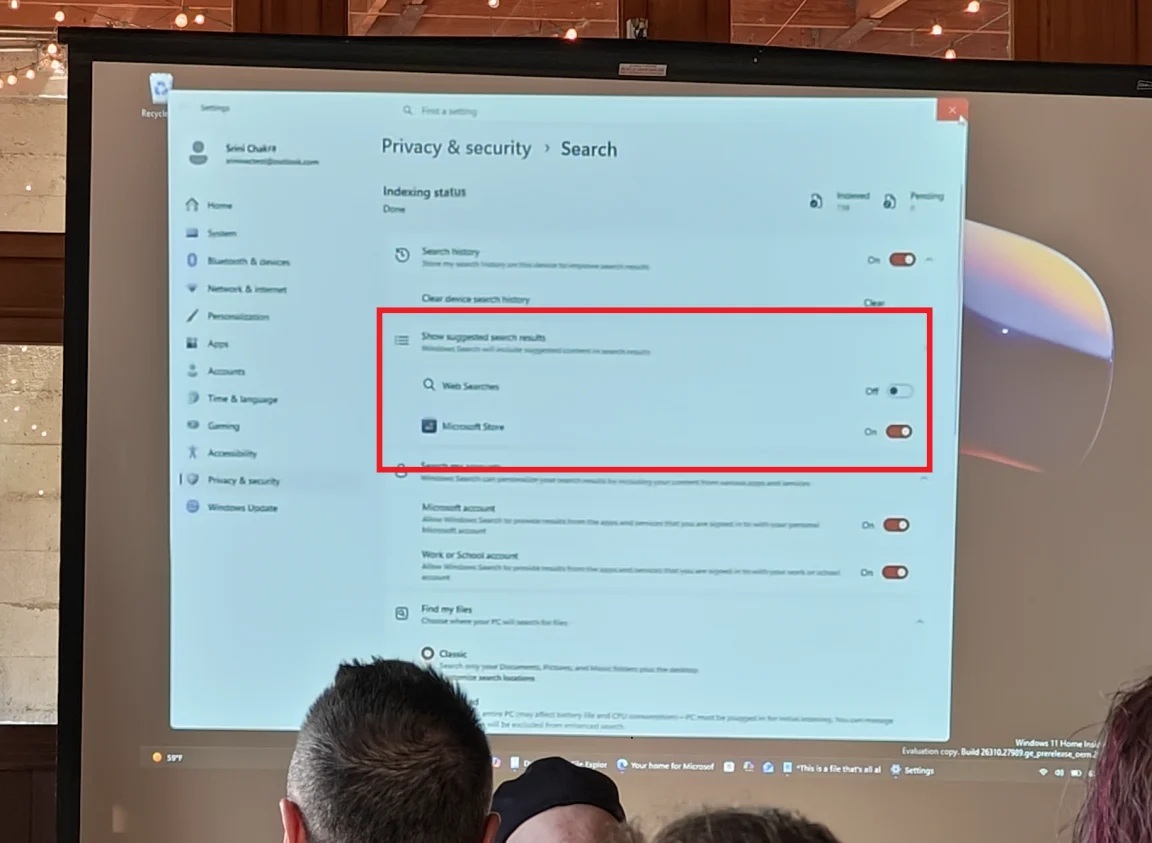
The toggle is still in testing and has not yet shipped to stable builds. Windows Latest independently confirmed the feature is in development, and Microsoft indicated it would begin rolling out to testers in the coming weeks.
Search improvements already live with the June 2026 update
While the typo forgiveness feature and the Bing toggle are still in testing, some Search improvements have already shipped to all Windows 11 users through the June 2026 Patch Tuesday update (KB5094126).
The most significant of these is that Search now starts returning file results after just two characters instead of three.
Before:
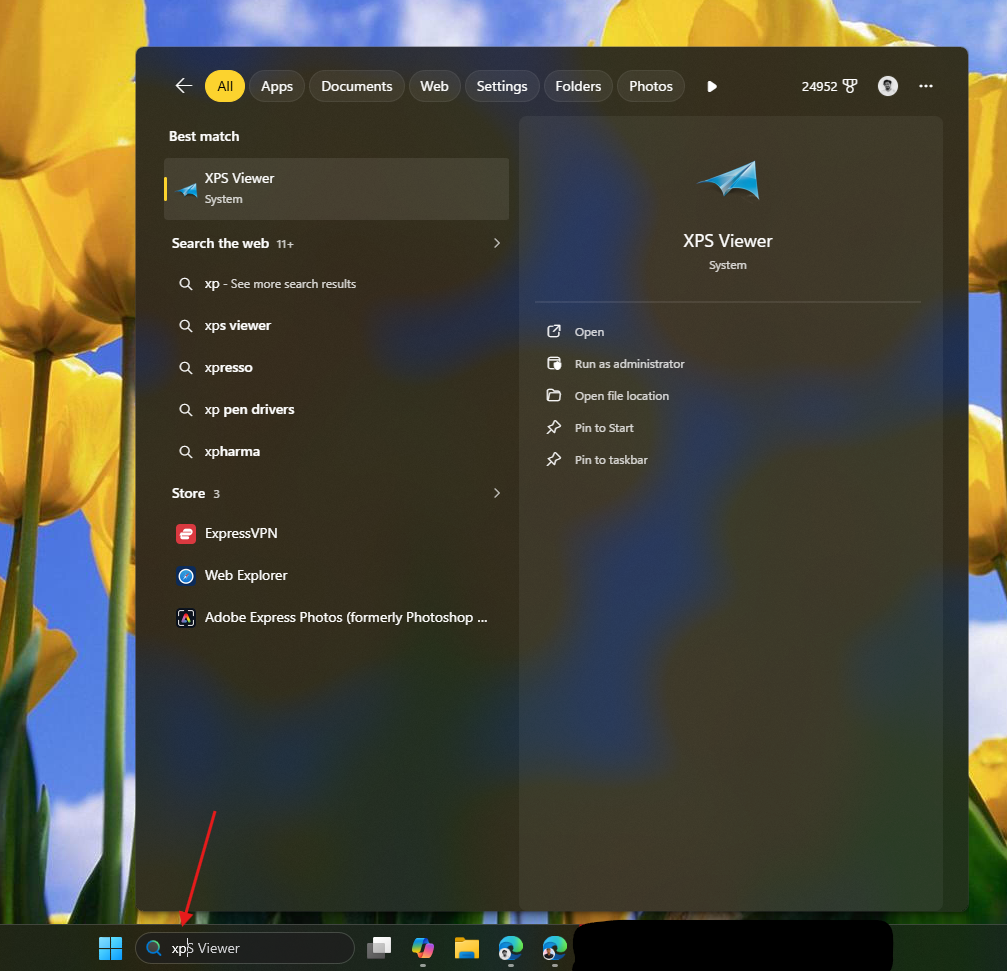
If you have a file or folder with a short name, you no longer have to type three characters before the local index begins showing results.
After:
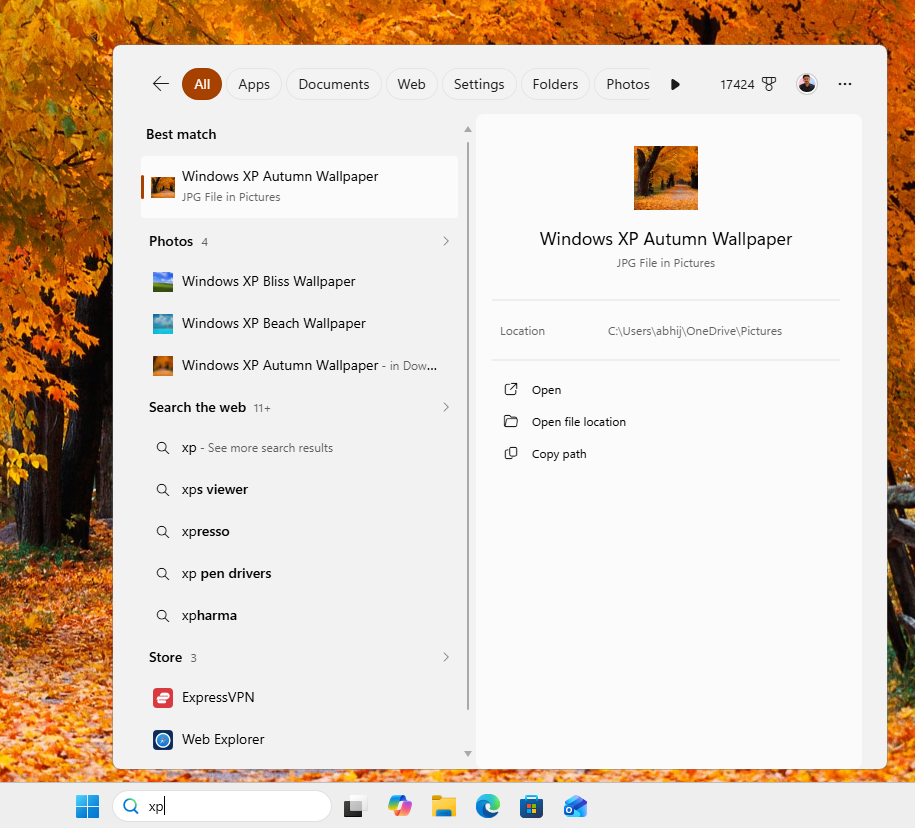
Windows Latest’s testing of the June 2026 update confirmed the two-character trigger is working as expected. A second Search improvement called Search by Substring, which lets Windows find files using any segment of a compound filename rather than just the start of it, is still in Insider builds and has not made it to stable yet. As covered earlier, substring matching means a file named “ProjectBrief_June2026.docx” can be found by searching “June2026” alone, without needing to type the beginning of the file name.
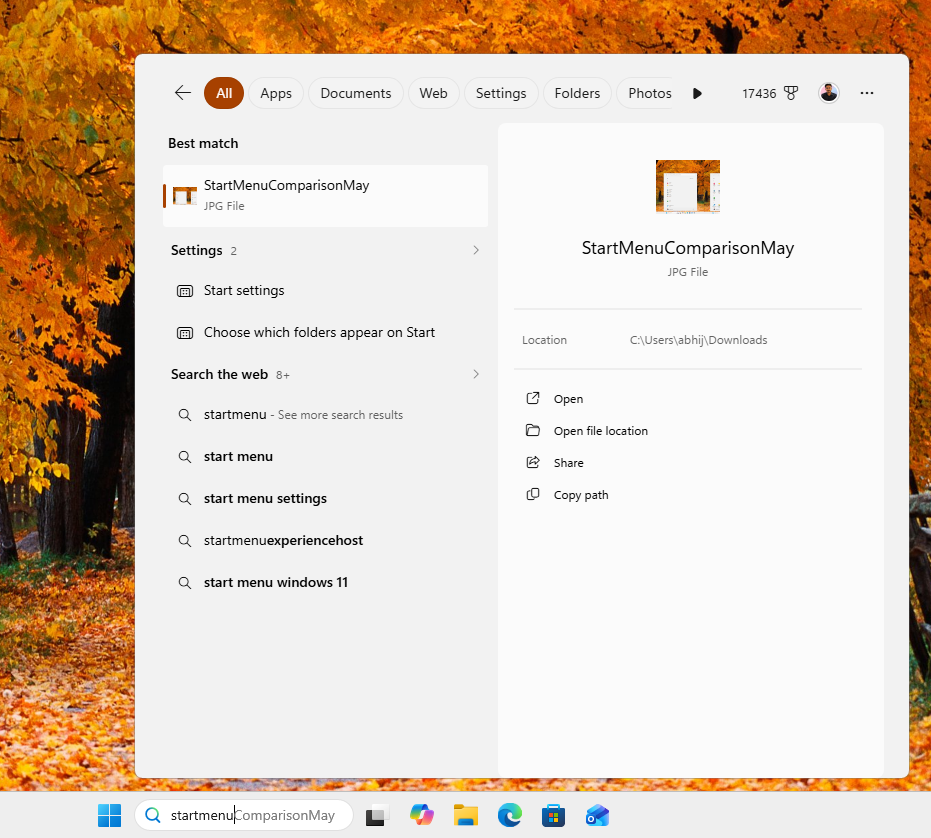
In our article about the best features in Windows 11 June 2026 update, we noted that the two-character trigger shipped in KB5094126, while the substring feature remains Insider-only.
Undoubtedly, what we need next from Microsoft regarding Search is a cleaner, lighter UI:
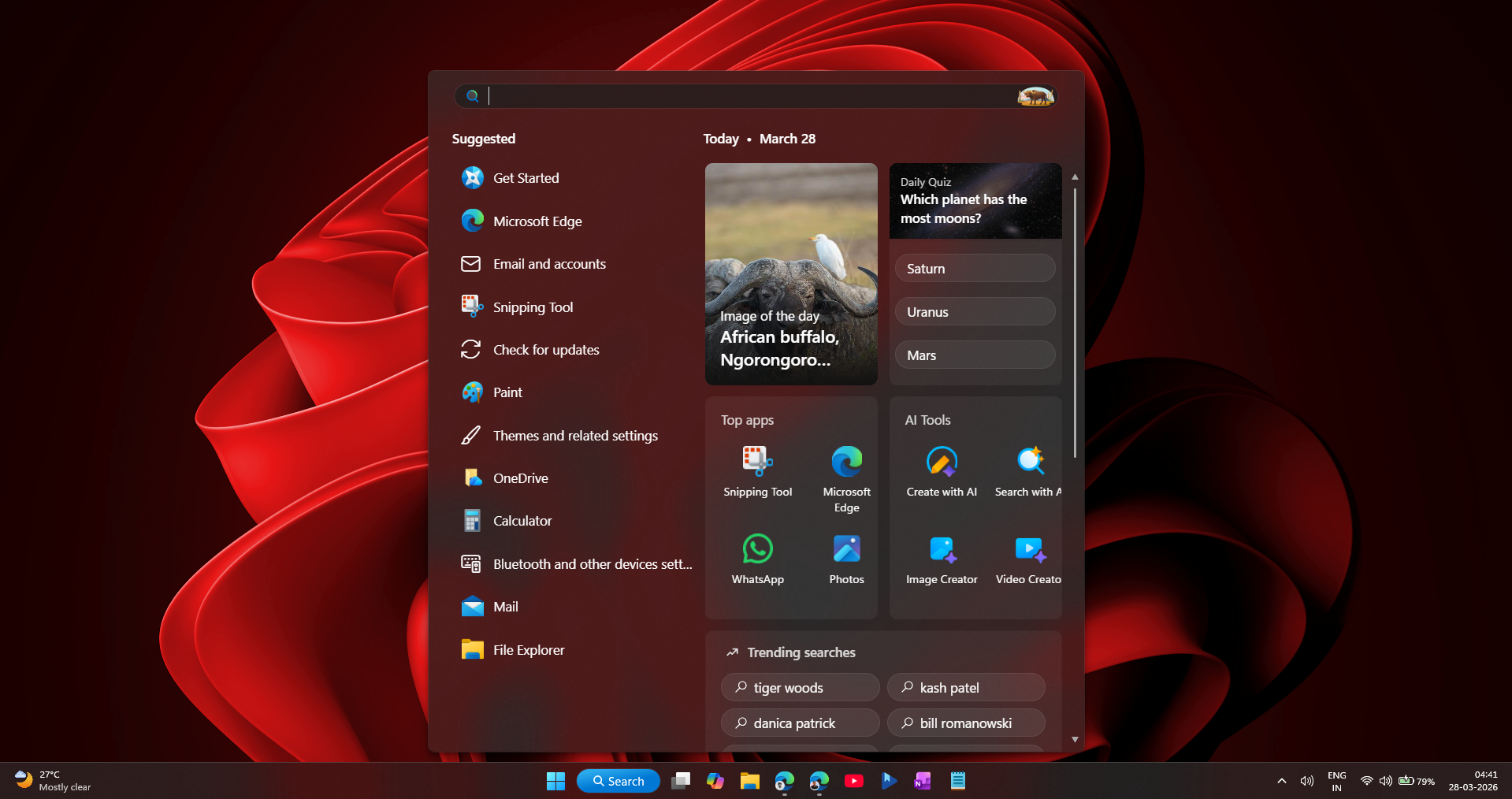
Either way, together with the typo forgiveness coming through Insider builds and the upcoming option to disable Bing, Microsoft is making more visible progress on Windows Search in mid-2026 than it managed across much of the previous two years.
The post Microsoft confirms Windows 11 Search will find your apps, not Bing results, even if you make typos appeared first on Windows Latest