Windows 11 KB5066835 25H2 adds new features, direct download links
Windows 11 KB5066835 is now rolling out for Windows 11 25H2 and 24H2. October 2025 Patch turns on AI Actions shortcut in File Explorer, allows Notification Center to work on secondary monitor, lets you move volume or brightness indicators and more. In addition to Windows Update, Microsoft posted direct download links for KB5066835 offline installers […] The post Windows 11 KB5066835 25H2 adds new features, direct download links appeared first on Windows Latest
 admin
admin

Windows 11 KB5066835 is now rolling out for Windows 11 25H2 and 24H2. October 2025 Patch turns on AI Actions shortcut in File Explorer, allows Notification Center to work on secondary monitor, lets you move volume or brightness indicators and more. In addition to Windows Update, Microsoft posted direct download links for KB5066835 offline installers (.msu).
Windows 11 KB5066835 is a mandatory security update shipping as part of Microsoft’s October 2025 Patch Tuesday. This patch is rolling out on PCs using Windows 11 version 25H2 and 24H2. As I previously reported, Windows 11 25H2 shares the same platform release as version 24H2, which means the two versions will get the same update.

I checked updates for updates at 10AM PT in the United States and it showed up as As you can see in the above screenshot, today’s release is titled “2025-10 Cumulative Update for Windows 11 Version 25H2 for x64-based Systems (KB5066835) (26200.6899).” In case of 24H2, the build number is Build 26100.6899.
Download Links for Windows 11 KB5066835
Windows 11 KB5066835 Direct Download Links: 64-bit and ARM-64 | On the Update Catalog, you just need to select “Download” and open .msu link (shows up in a pop-up) download the .msu package. Sometimes, Update Catalog shows up in an incorrect language, but you can safely ignore it.
Once you’ve downloaded the October 2025 Update’s offline installer, double-tap the .msu file in File Explorer. You should try Update Catalog approach only when a) Windows Update is not working b) KB5066835 refuses to install due to xyz error. I installed the update, and it’s actually quite large in size:
| Build Number | Size | OS Version | Architecture |
|---|---|---|---|
| 26100.6899 | 3932.4 MB | Windows 11 Version 24H2 | x64-based |
| 26100.6899 | 3726.2 MB | Windows 11 Version 24H2 | arm64-based |
| 26200.6899 | 3932.4 MB | Windows 11 Version 25H2 | x64-based |
| 26200.6899 | 3726.2 MB | Windows 11 Version 25H2 | arm64-based |
Windows 11’s October 2025 Update is a feature drop, so it takes a bit longer than usual to download and install. In our tests, we observed that it takes approx 7 minutes to finish the cycle of download and install, but the reboot adds another two minutes.
If you use Microsoft Update Catalog, size is going to be huge as in the table, but via Windows Update, it’s less than 2GB.
What’s new in Windows 11 Build 26200.6899 (25H2) and 21200.6899 (24H2)
There are several new features in the October 2025 Update, such as a new “Edit” command-line-based text editor, but Microsoft told Windows Latest that most, if not all, changes are rolling out gradually. This means, even if you update to 26200.6899 (25H2) and 21200.6899 (24H2), you’ll not see these features immediately
1. New Edit tool is now pre-installed
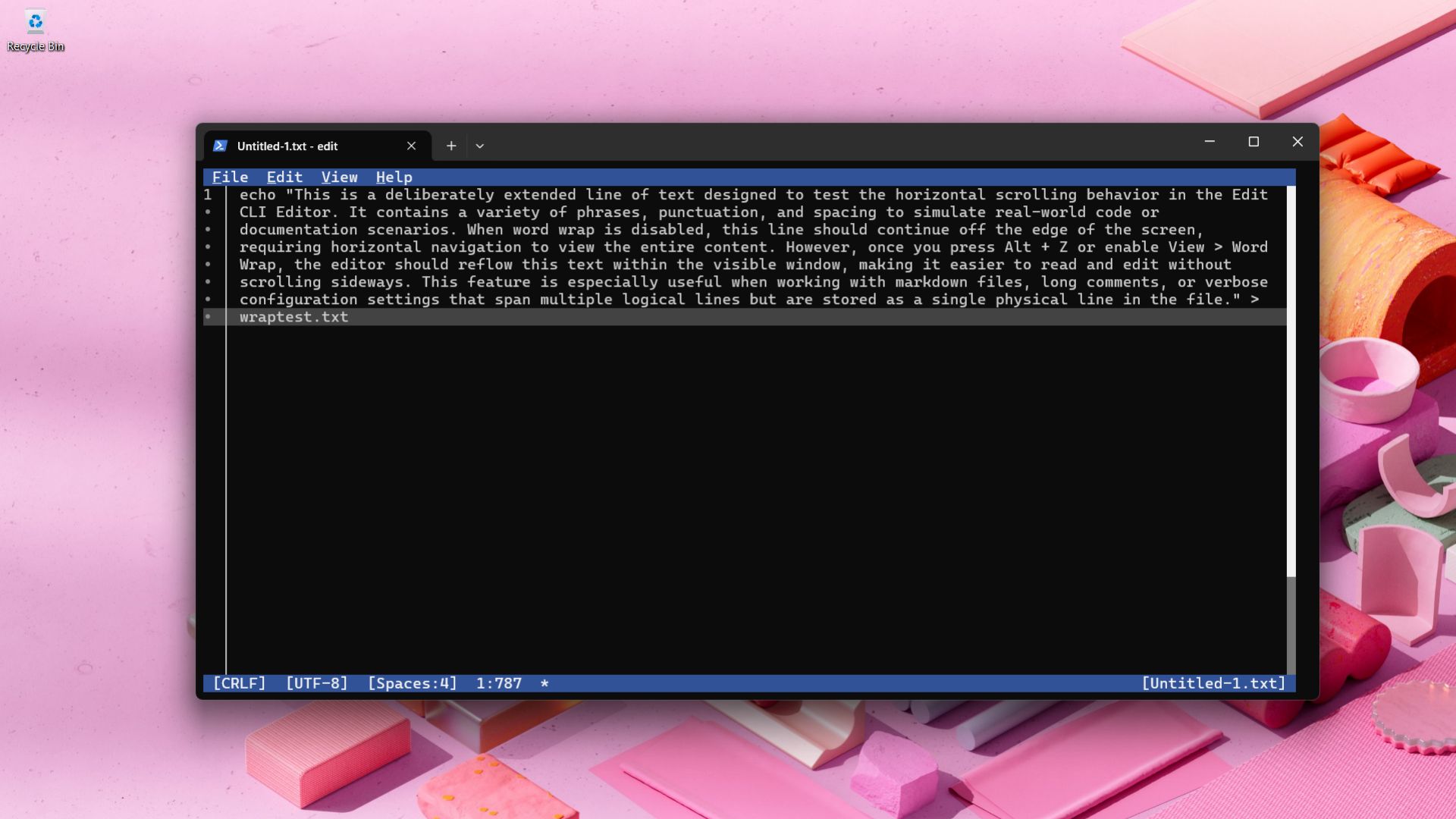
After installing Windows 11 KB5066835, we noticed that there is a new command-line-based text editor called “Text.” This is a decent alternative to Notepad if you prefer a command-line interface and no Copilot/AI junk.
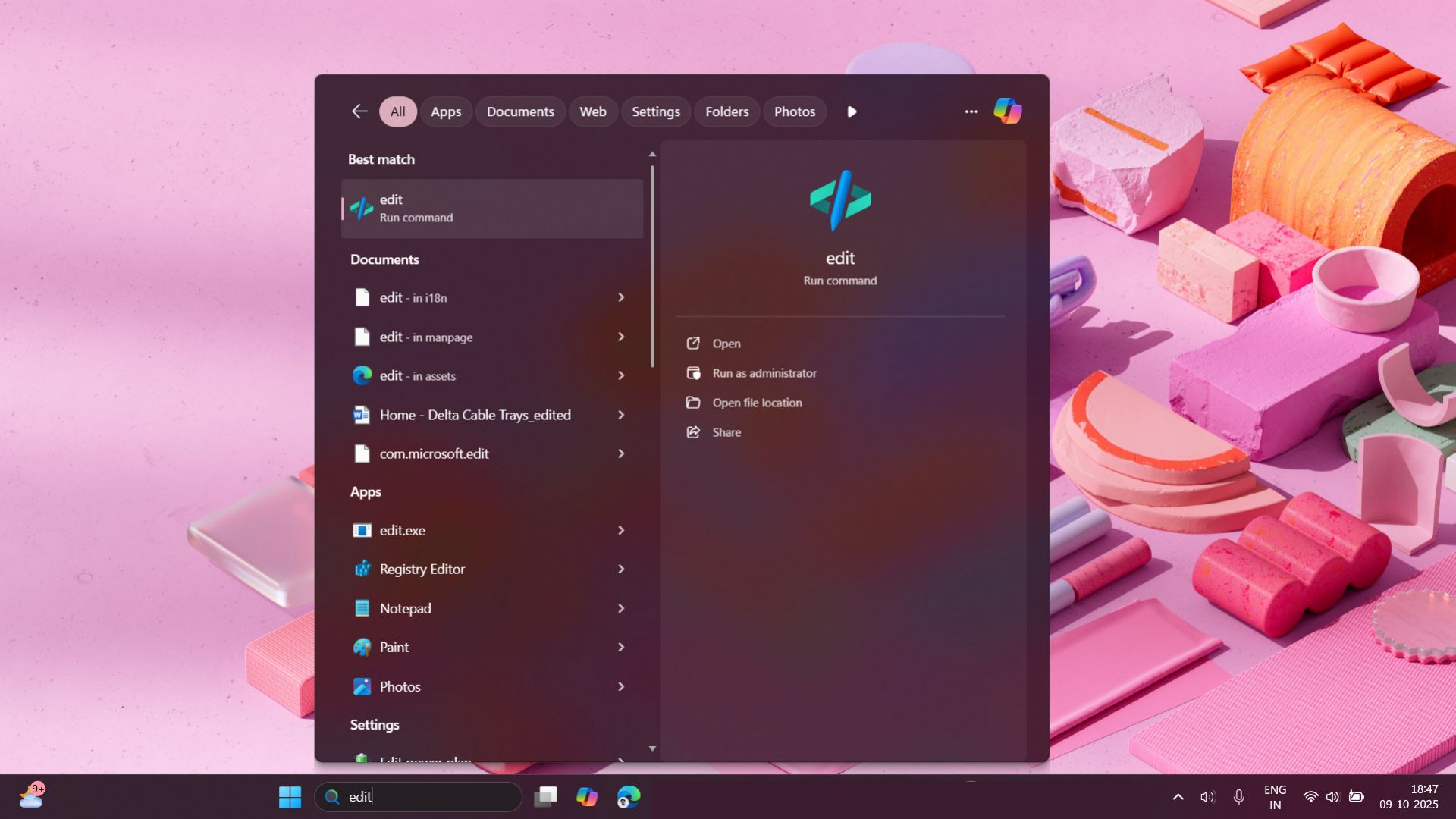
Edit is an open-source command-line text editor, and it’s built on top of a similar tool that shipped with MS-DOS. You just need to search “Edit” in Windows Search, and it’ll show up, as it’s a simple command-line tool. It’ll run inside Windows Terminal, and it’s actually quite fun to use.
You can type as you would in Notepad or Terminal. Edit isn’t as powerful as Notepad++, but it gets the job done. It also supports features like word wrap, find tool, and more.
2. Notification center now works on the secondary display
Windows 11 recently added support for a full-fledged clock to the notification centre.
Just like Windows 10, you can now view a clock with seconds when you open the notifications centre, and you can also collapse the calendar to just have the date with time (seconds). But the notification centre doesn’t work as expected when you have more than one monitor.
With Windows 11 KB5066835, the notification centre now opens on the secondary display if you tap on the icon there. Previously, even if you tried to open the notification centre on the secondary display, it would open on the primary.
3. Windows finally lets you move the volume, brigthness and other indicators

What happens when you change the brightness, volume, turn on or off features like aeroplane mode? A small indicator or pop-up appears at the bottom of the screen if you’re on Windows 11. In the case of Windows 10, the indicator appeared on the top left. Some hated it, but some preferred it that way.
In our tests, Windows Latest observed that Windows 11 KB5066835 finally lets you move the indicators.
To change how indicators appear when you adjust volume or brightness, you need to open Settings > System > Notifications.

Once you’re on the above screen, you need to scroll down a bit, and select the options under position of on-screen indicators. By default, it’s set to Bottom center, but you can choose between Top left and Top Center.
The post Windows 11 KB5066835 25H2 adds new features, direct download links appeared first on Windows Latest