Microsoft 365 apps downloaded via MS Store is losing support on Windows 11, verify if you’re affected
Microsoft is officially retiring the Microsoft Store installation type for Microsoft 365 apps. Users and IT admins must migrate to the Click-to-Run version to ensure uninterrupted feature rollouts and critical security updates. Find out how you can check your version and easily switch your installs. The post Microsoft 365 apps downloaded via MS Store is losing support on Windows 11, verify if you’re affected appeared first on Windows Latest
 admin
admin
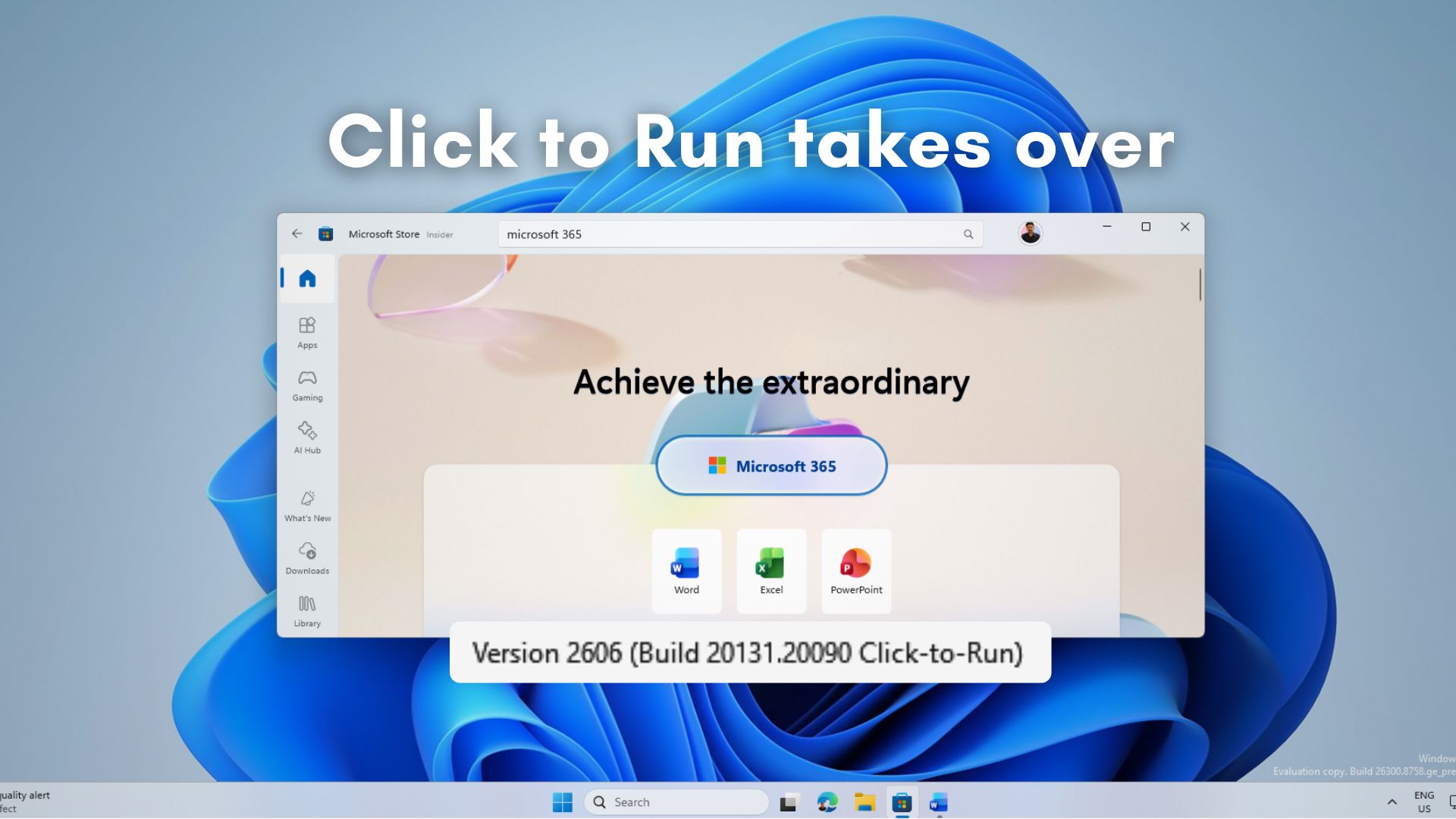
Microsoft has quietly resurfaced a deadline that’s been on the horizon for a while. The company is retiring the Microsoft Store installation type of Microsoft 365 Apps, and the clock is ticking for anyone still running Office through the Store. If you installed Office apps from the Store and never migrated, you’re affected.
If this feels familiar, it should. We covered this almost a year ago, long before the reminder started making the rounds this week. In an updated support document spotted by Windows Latest, Microsoft is reiterating the timeline, and shared the following statement.
“Support for the Microsoft Store installation type of Microsoft 365 Apps is ending. New feature updates stopped in October 2025 and security updates will end in December 2026. If you have the Microsoft Store installation type of Microsoft 365 Apps, you must upgrade to the Click-to-Run installation type.” – Microsoft
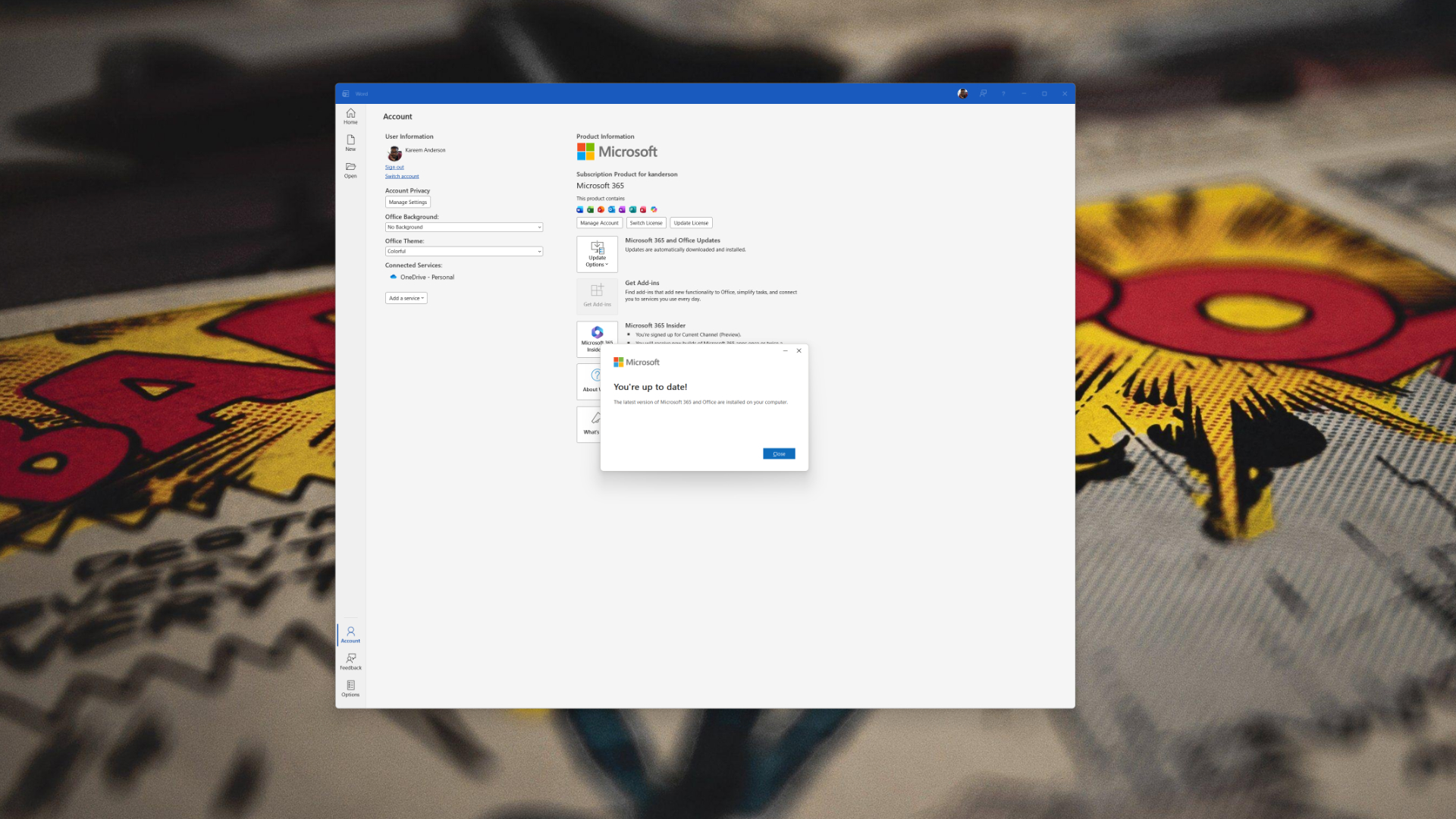
TLDR; This change affects everyone, including consumers who installed Office apps from the Microsoft Store. And most of you probably don’t realize the type of Office apps installed on your system. If you downloaded Office apps from the Store or Microsoft’s website, they look and work in the same way, but updates are handled differently.
The announcement makes it worth revisiting what’s changing, why it’s happening, and what you should do next.
Store vs Click-to-Run: how Microsoft 365 gets installed today
Microsoft 365 apps can be installed on Windows PCs in two distinct ways. The Store installation types use Appx packaging, the same models that power Microsoft’s often forgotten UWP app architecture. Microsoft designed the development models to sandbox apps and update them through Windows Updates.
Ironically, Click-to-Run is Microsoft’s more flexible streaming installer, designed to accommodate the varying demands of enterprise management and built for rapid feature delivery.
At first blush, both installation types appear identical insofar as they involve downloading and installing. Word operates as Word always has. Excel is still Excel. But the underlying architecture guides how the apps update, how they integrate with Windows, and how an IT admin manages them on the backend.
Traditionally, Microsoft Store updates have followed Windows Update cadence, which means slower feature delivery. Click-to-Run handles updates in the background directly from Microsoft’s CDN and supports multiple update channels. The difference mostly doesn’t matter for home users, but for organizations managing thousands of devices, it is significant.
Why Microsoft is dropping the Store installation type
This shift might seem counterintuitive, especially after BUILD 2026, where Microsoft encouraged developers to create Windows-first experiences using WinUI3.
Microsoft clearly wants to reinvigorate native Windows development. Even so, Office sits in a category of its own. It’s not just another consumer-facing app experience in the ecosystem like Netflix, Instagram, or Reddit. Office is a core productivity suite that enterprises depend on, and enterprises need a level of control that Store installations cannot match at the moment.
However, the main reason for this migration is that Store installs lack support for XML configuration, multi-user environments, and enterprise management tools like Intune and Configuration Manager. They also tie Office updates to Windows updates, which slows down the delivery of new features. As Microsoft 365 becomes increasingly driven by cloud-based enhancements and Copilot integrations, that delay fosters real limitations.
Microsoft has been auto-pushing Copilot into Microsoft 365 apps aggressively, and doing that quickly requires a deployment model that does not wait on Windows Update. Click-to-Run is that model. It supports multiple update channels, centralized management, and faster feature rollouts.
What this means for you right now
For you, the transition should be mostly indistinguishable. The apps will look the same and behave the same. However, going forward, Store installs stopped getting feature updates back in October 2025 and will stop getting security updates this December 2026. If you choose to stay on the Store version, you risk eventually falling behind on both functionality and protection for your Office work.
For IT admins, the impact is more substantial. Click-to-Run gives them the tools they want: update channel control, shared device activation, telemetry management, and scalable deployment. Despite Microsoft’s push, the Store version never fit well into enterprise workflows, and its retirement, in this case, clears the path for a more predictable, cloud-managed Office environment.
How to check which installation type you have
If you’re unsure which version you’re running, the check takes only about ten seconds:
- Open any Microsoft 365 app
- Select File.
- Choose Account
- Look near the About button.
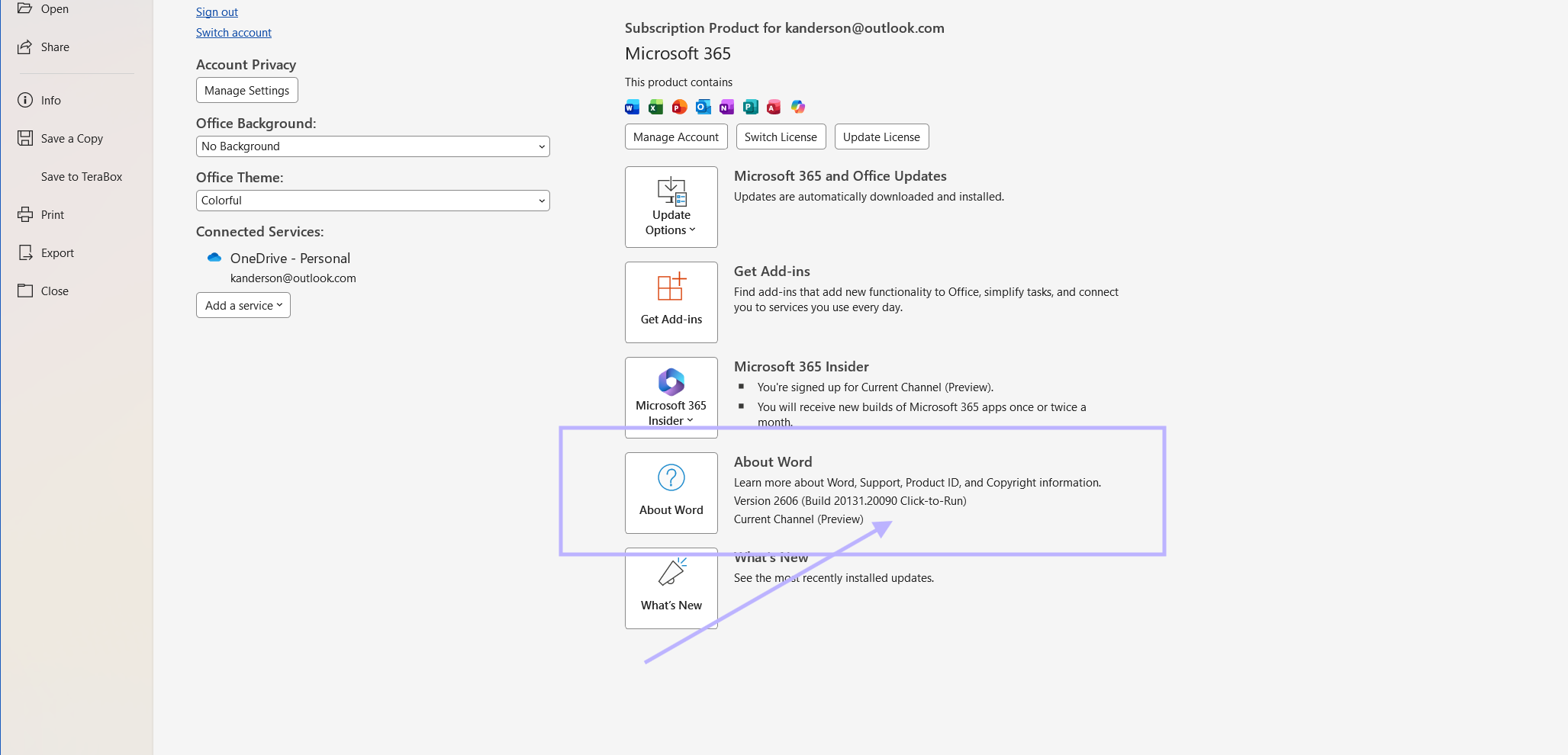
You should see either Click-to-Run or Microsoft Store listed alongside your version and build. If you’re already on Click-to-Run, give yourself a pat on the back. However, if you see Microsoft Store, panic. Just kidding.
How to move to Click-to-Run for Microsoft Office apps
Fortunately, Microsoft has made the switch pretty straightforward.
- Save your work and close all Office apps.
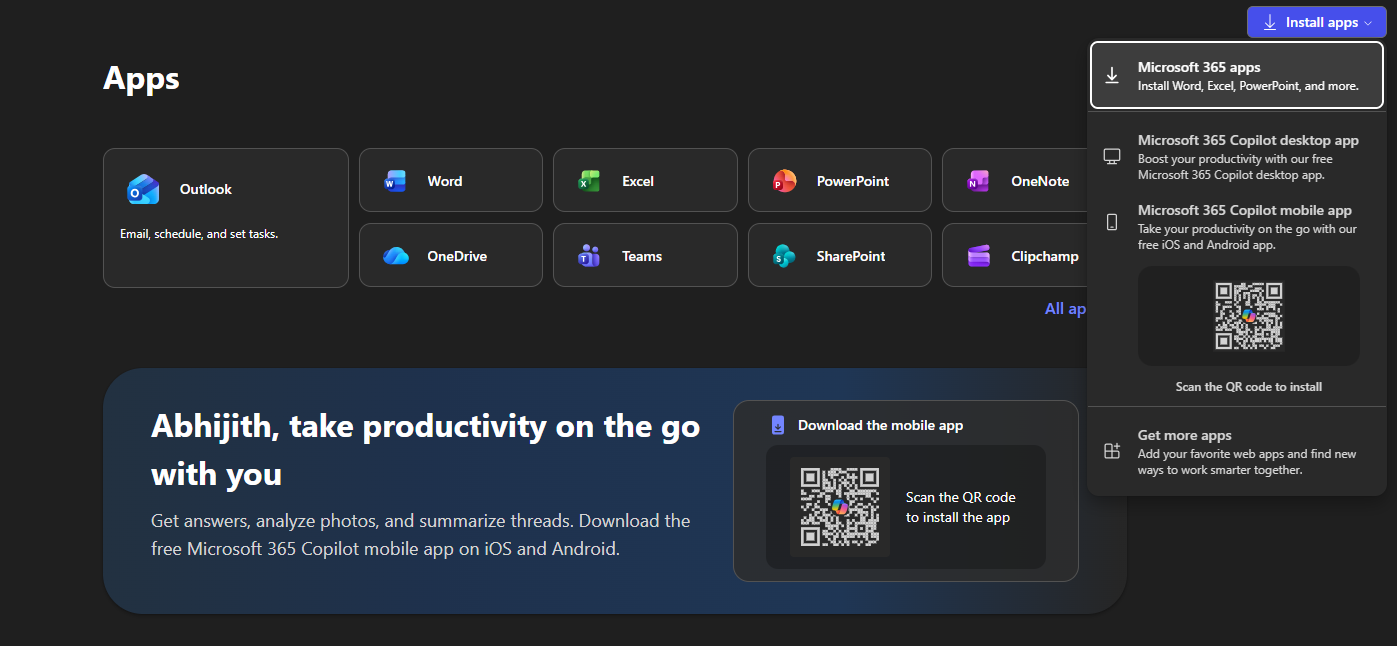
- Visit Microsoft’s official Microsoft 365 Installer download page.
- Sign in with a Microsoft account tied to your license.
- Download the Office Deployment Tool.
- Run the installer.
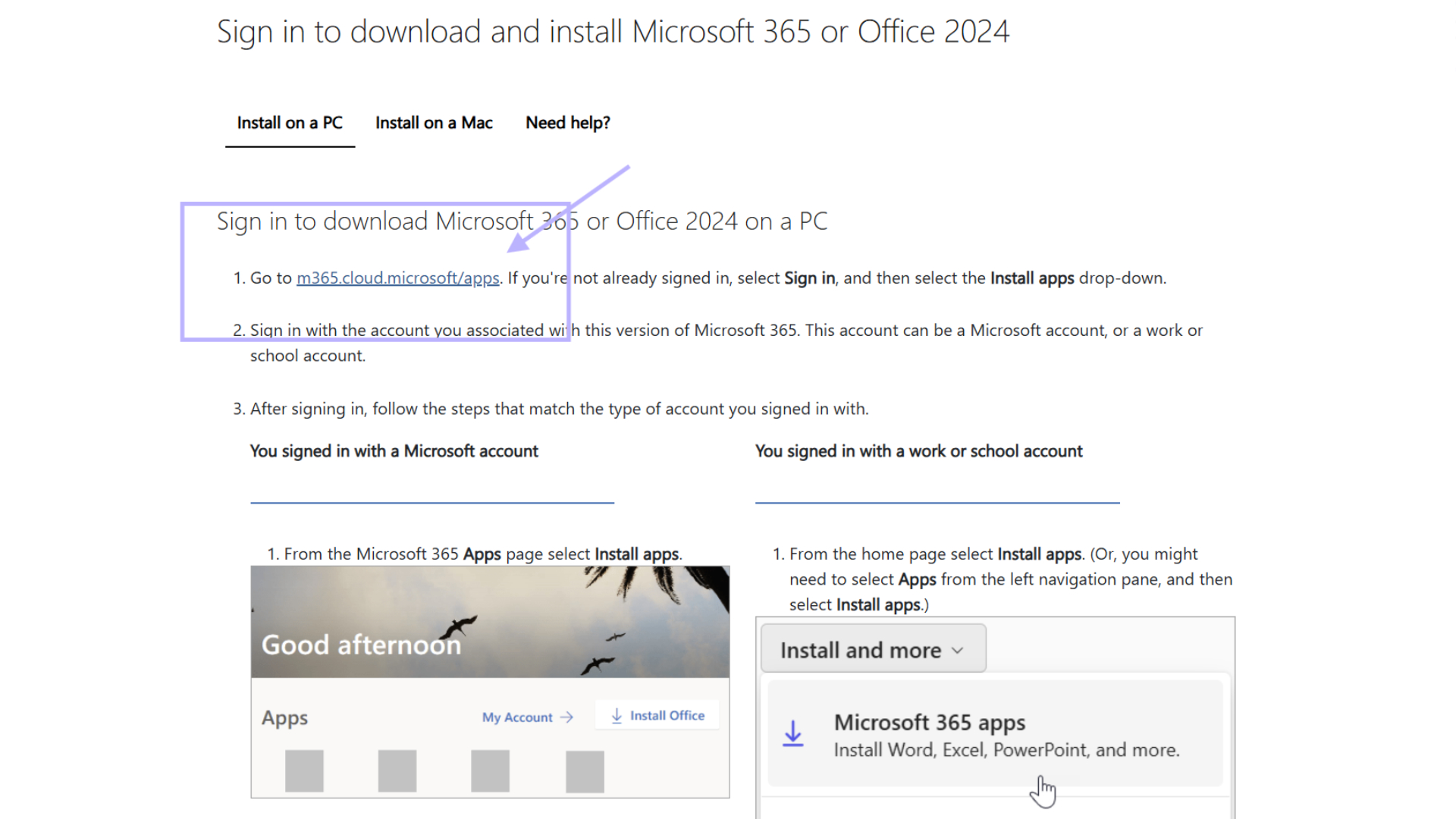
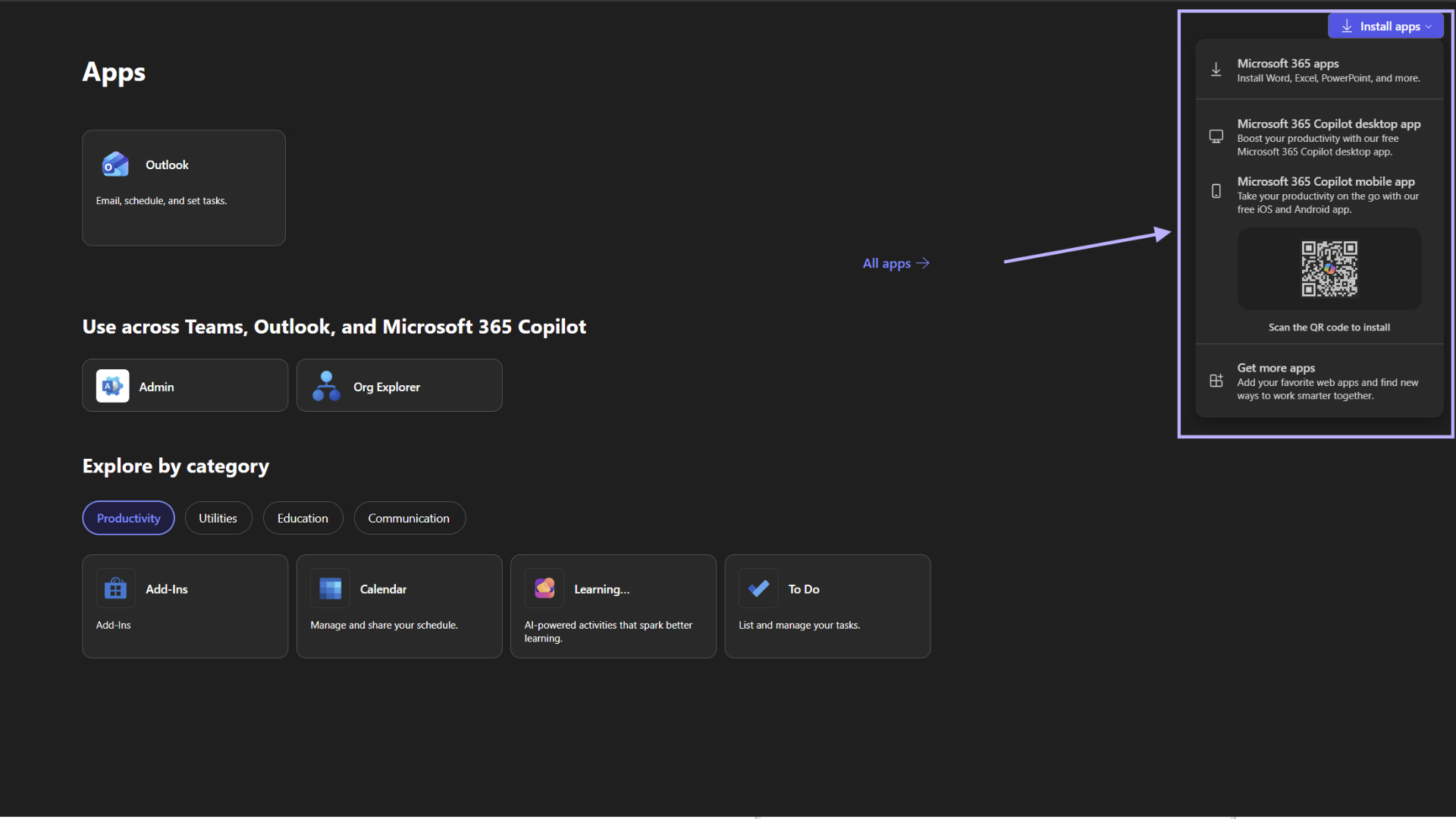
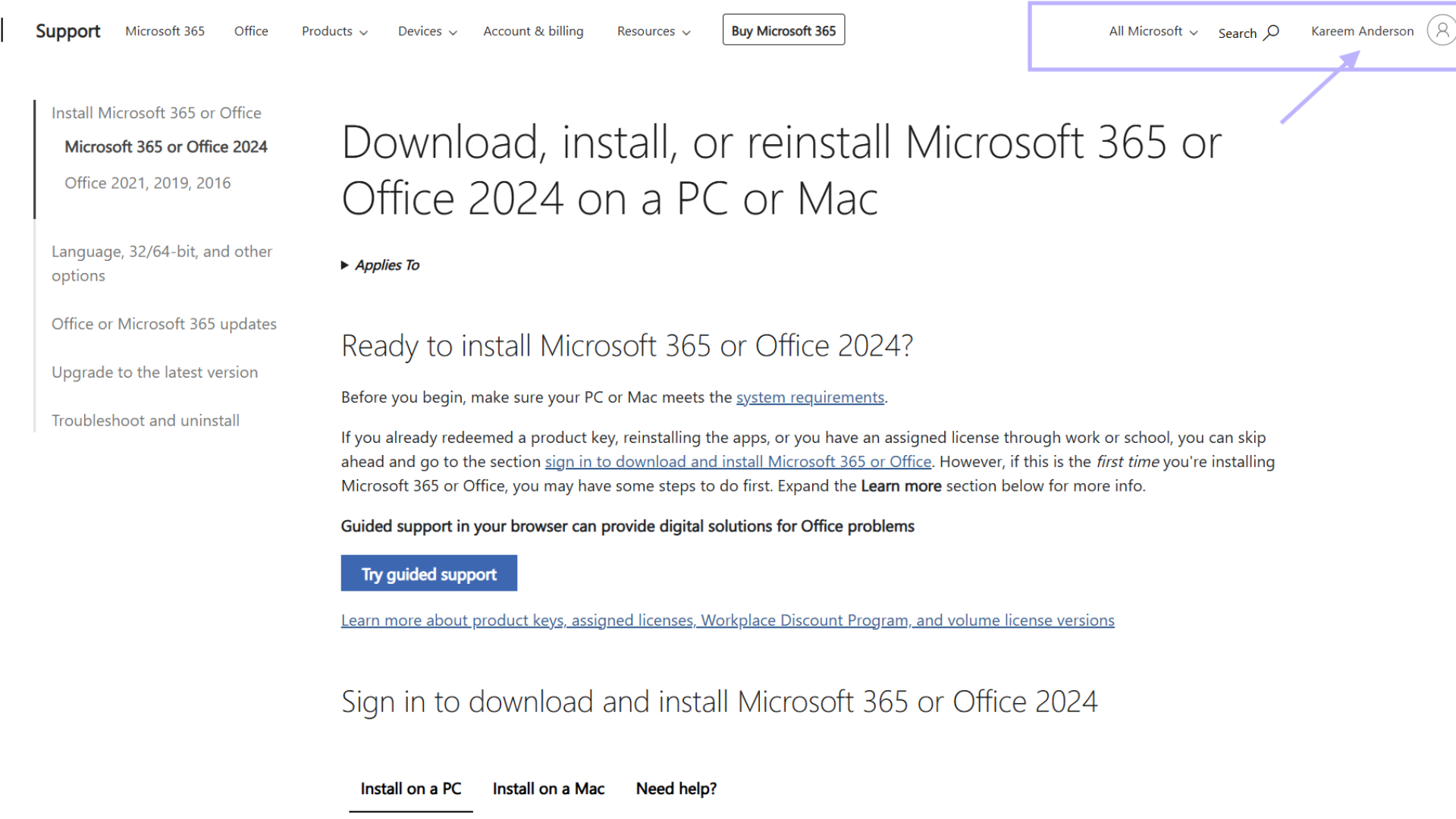
The installer automatically detects the Store version, removes it, and reinstalls Office using Click-to-Run. No manual uninstall step is required, and you do not need to purchase a new license. The process takes a few extra minutes because it is doing both steps at once, but your license and settings carry over.
For IT admins deploying this at scale, managed deployments through the Office Deployment Tool via Intune or Configuration Manager will automatically detect and replace the Store installation type without any per-device manual steps.
The post Microsoft 365 apps downloaded via MS Store is losing support on Windows 11, verify if you’re affected appeared first on Windows Latest