Tested: Microsoft just debloated Windows 11 Search without Bing, and it’s crazy fast
Windows 11 Insider build 26300.8697 hides a long-awaited toggle to disable web results in Search. We enabled it using ViveTool and tested it hands-on. Search is faster, the UI is cleaner, and local files take over. Here is what the new experience looks like and how to enable it yourself. The post Tested: Microsoft just debloated Windows 11 Search without Bing, and it’s crazy fast appeared first on Windows Latest
 admin
admin

Windows 11’s Search is getting a long-overdue option to completely remove web results, and it is now hidden inside Insider Experimental build 26300.8697, the first build to carry Windows 11 version 26H2. With the toggle turned on, Search is noticeably faster, the panel is cleaner, and local results take over without Bing pushing its way in.
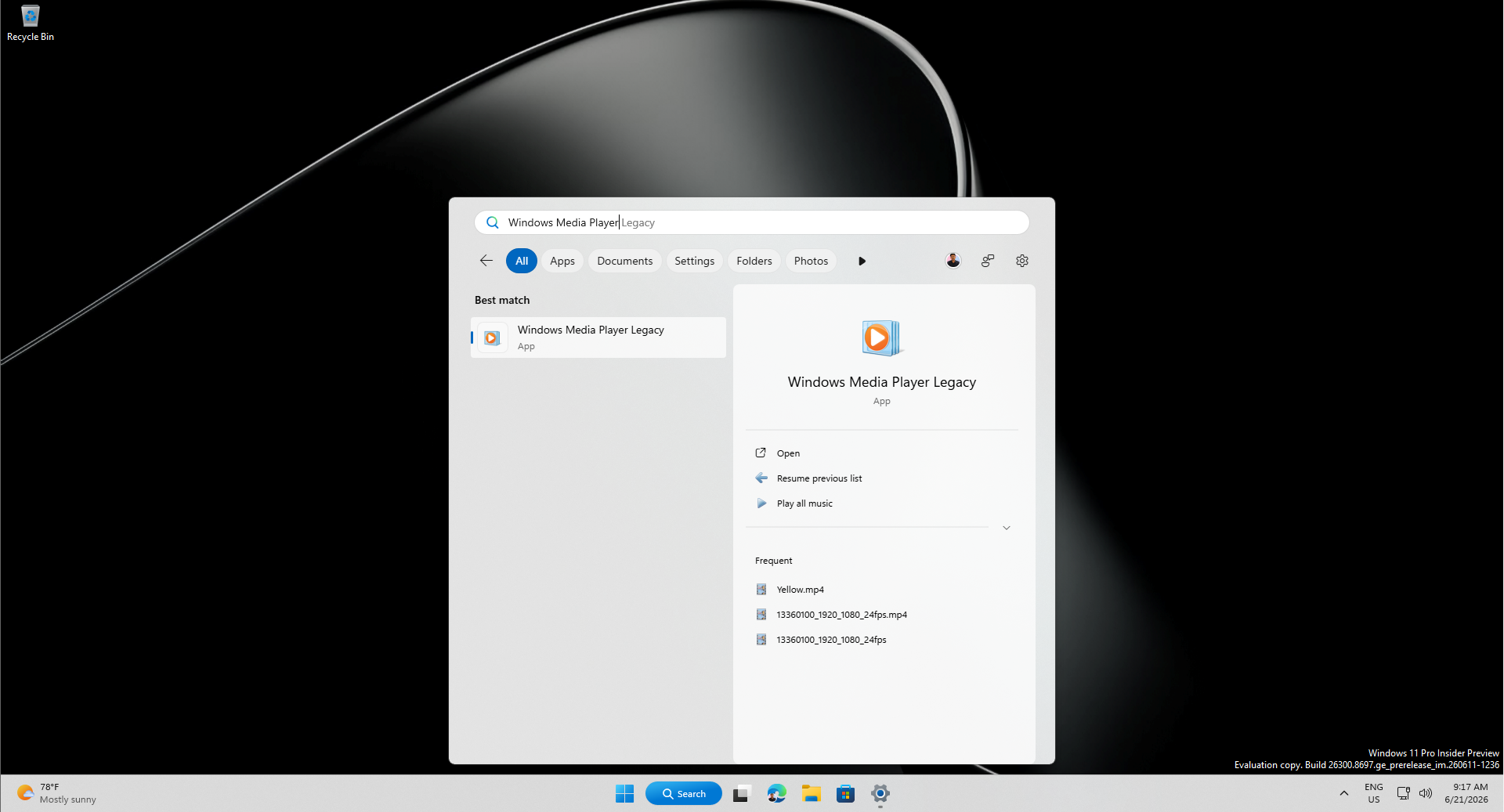
Windows Latest first reported in May that Microsoft was working on changes to deprioritize web results in Windows Search. More details followed in our June 7 report on the dedicated toggle being developed. Microsoft officially confirmed the feature on June 18, noting it will also improve Search performance since it no longer waits on web round-trips.
Here is everything we found.
How Windows 11 Search looks and feels without web results
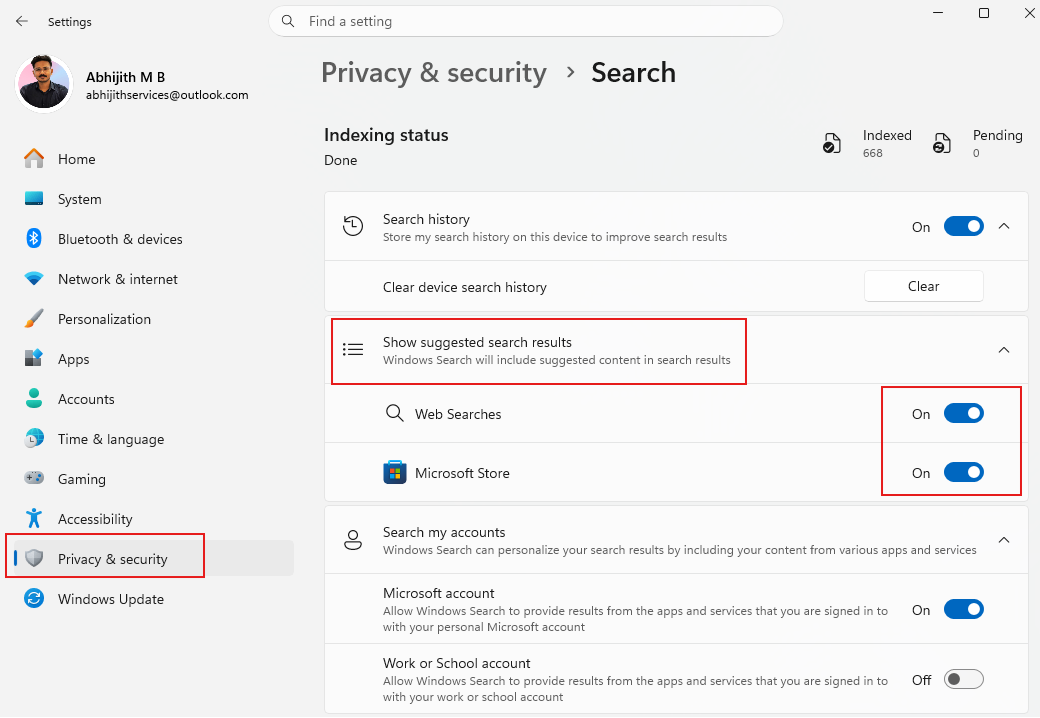
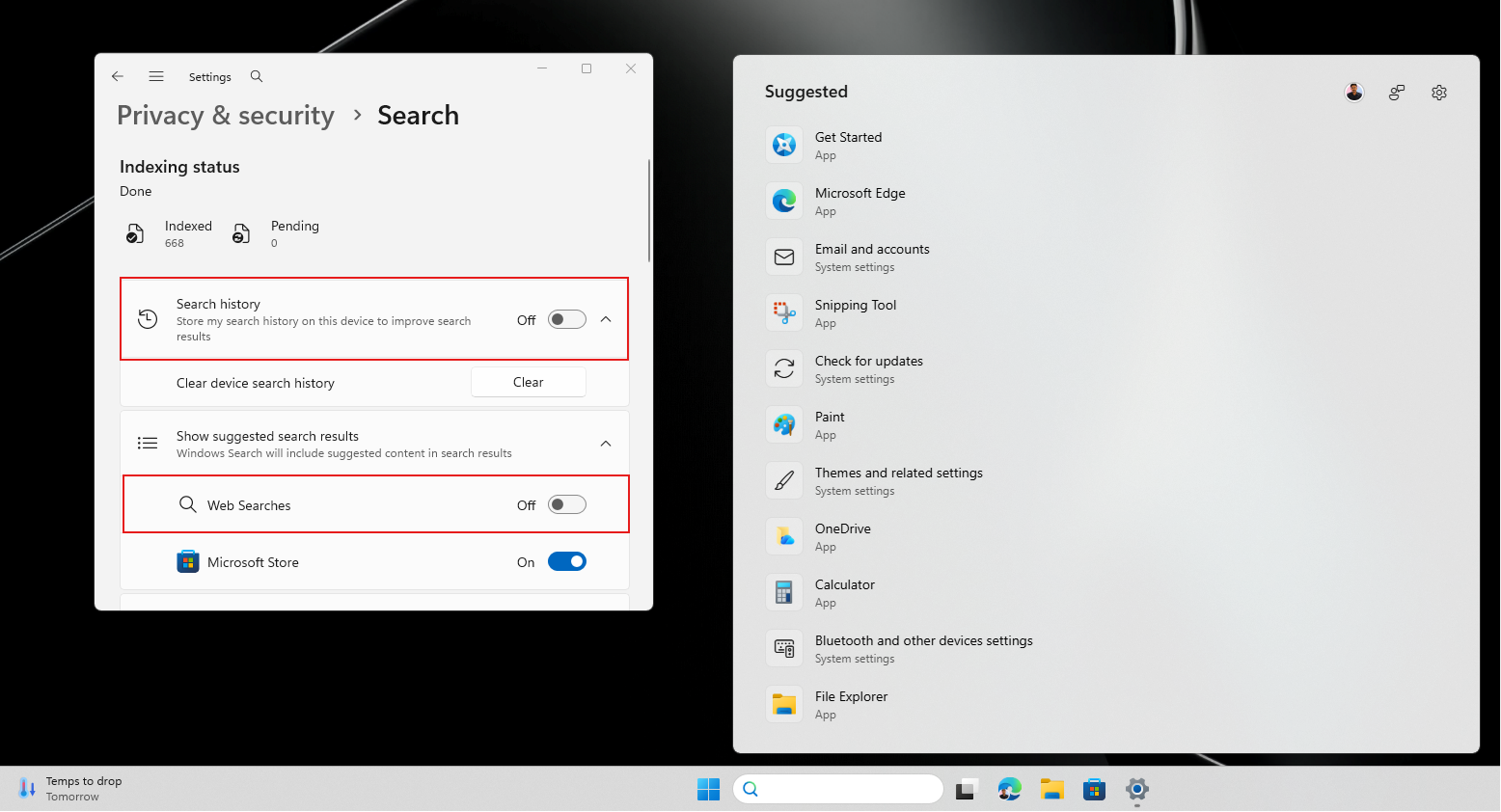
Web Searches and Microsoft Store toggles are present in a new section called “Show suggested search results” in the Windows Search Privacy & security settings page. You can also access it from the Gear icon on the top right of Windows Search.
Even before turning off the toggles, Windows Search doesn’t show any MSN content, top apps, and trending searches, as it defaulted to before. However, since my Search history toggle is on, it is still showing my past web searches.
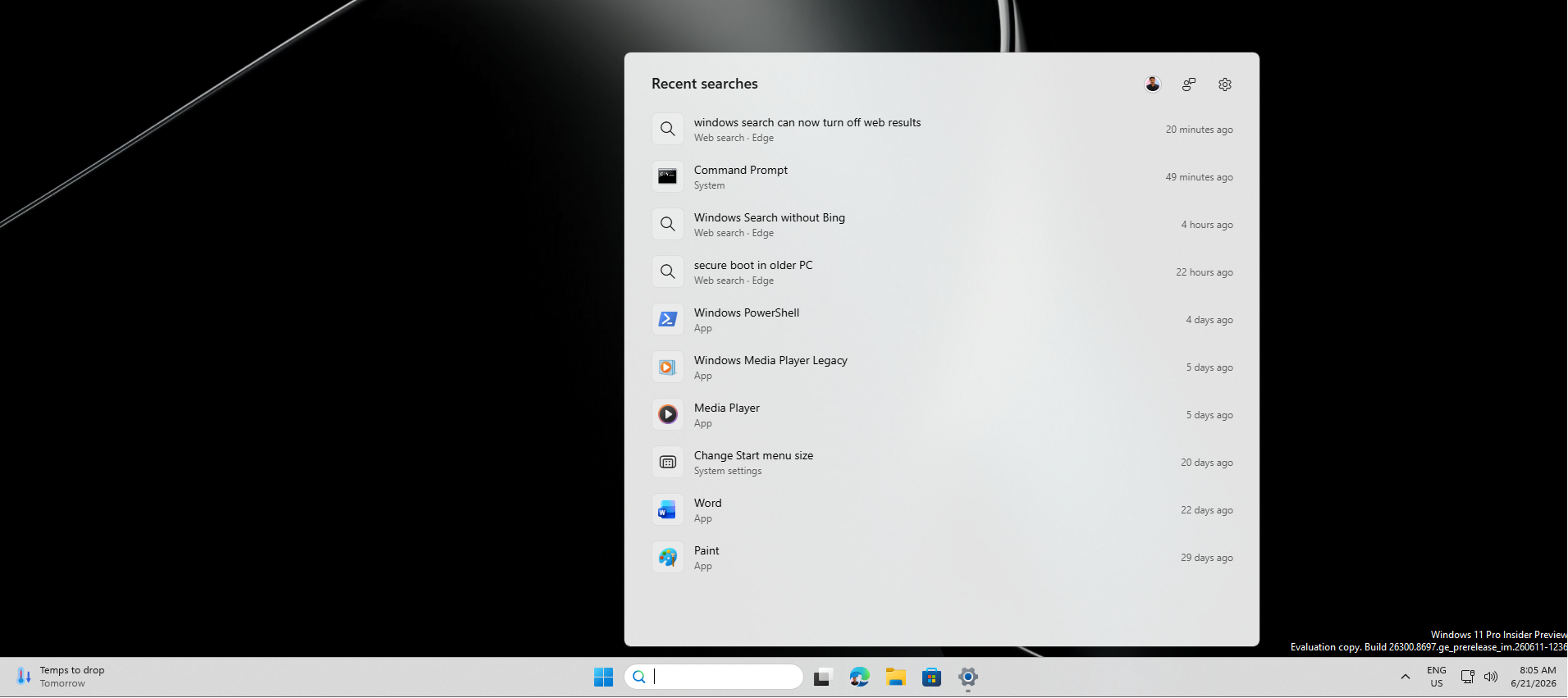 We have been complaining for quite a while that Microsoft needs to stop showing recommended content and searches in Search, and it looks like they have finally listened. But I’m not sure if this will be the default state when the changes come to all Windows 11 PCs. Also, turning off the Search history toggle just shows some Suggested apps and Windows settings.
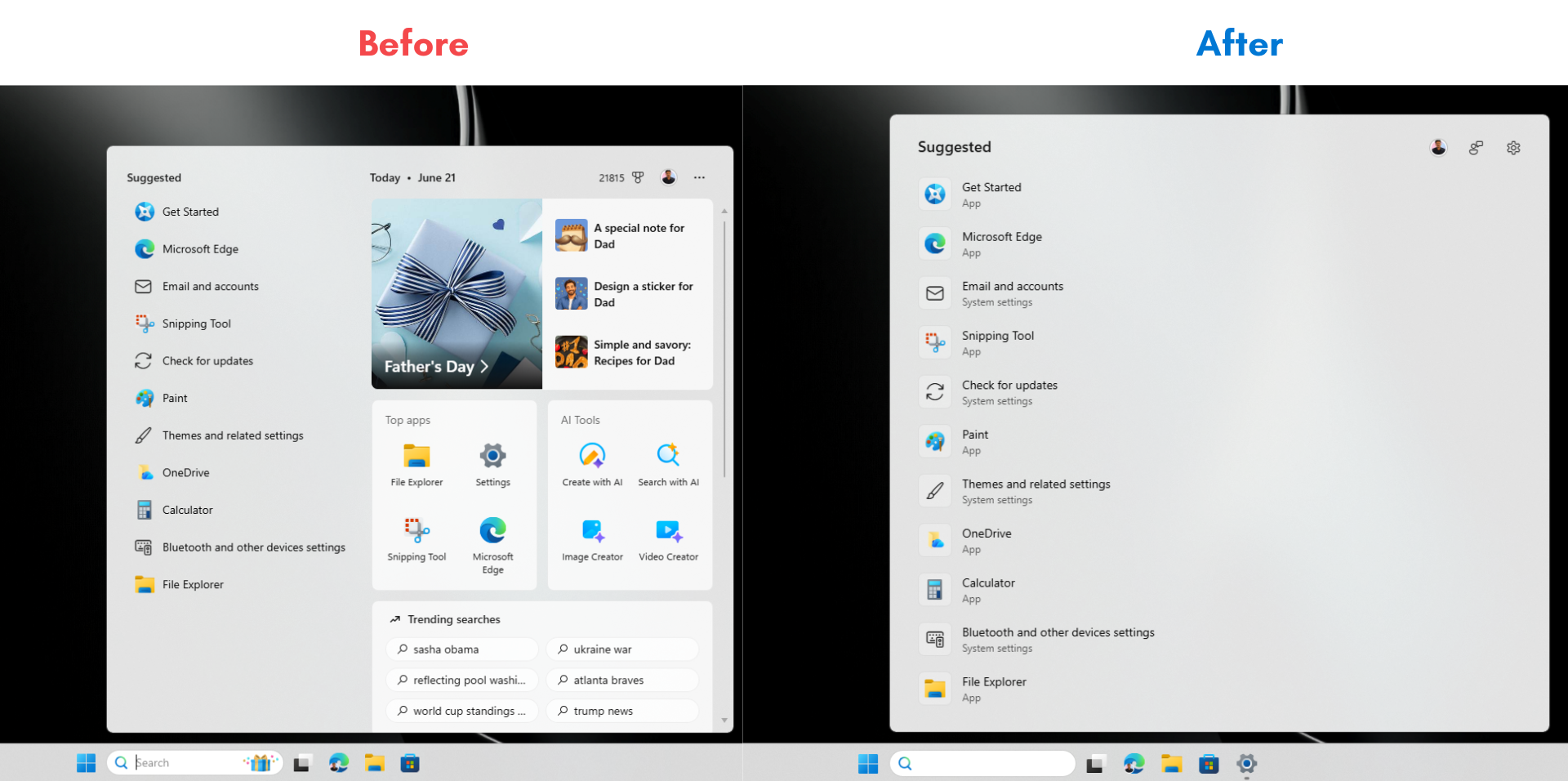
Keeping the Search history toggle turned on, I turned off the toggle for Web Searches, and opening Windows Search now shows my Recent app searches and Settings searches only.
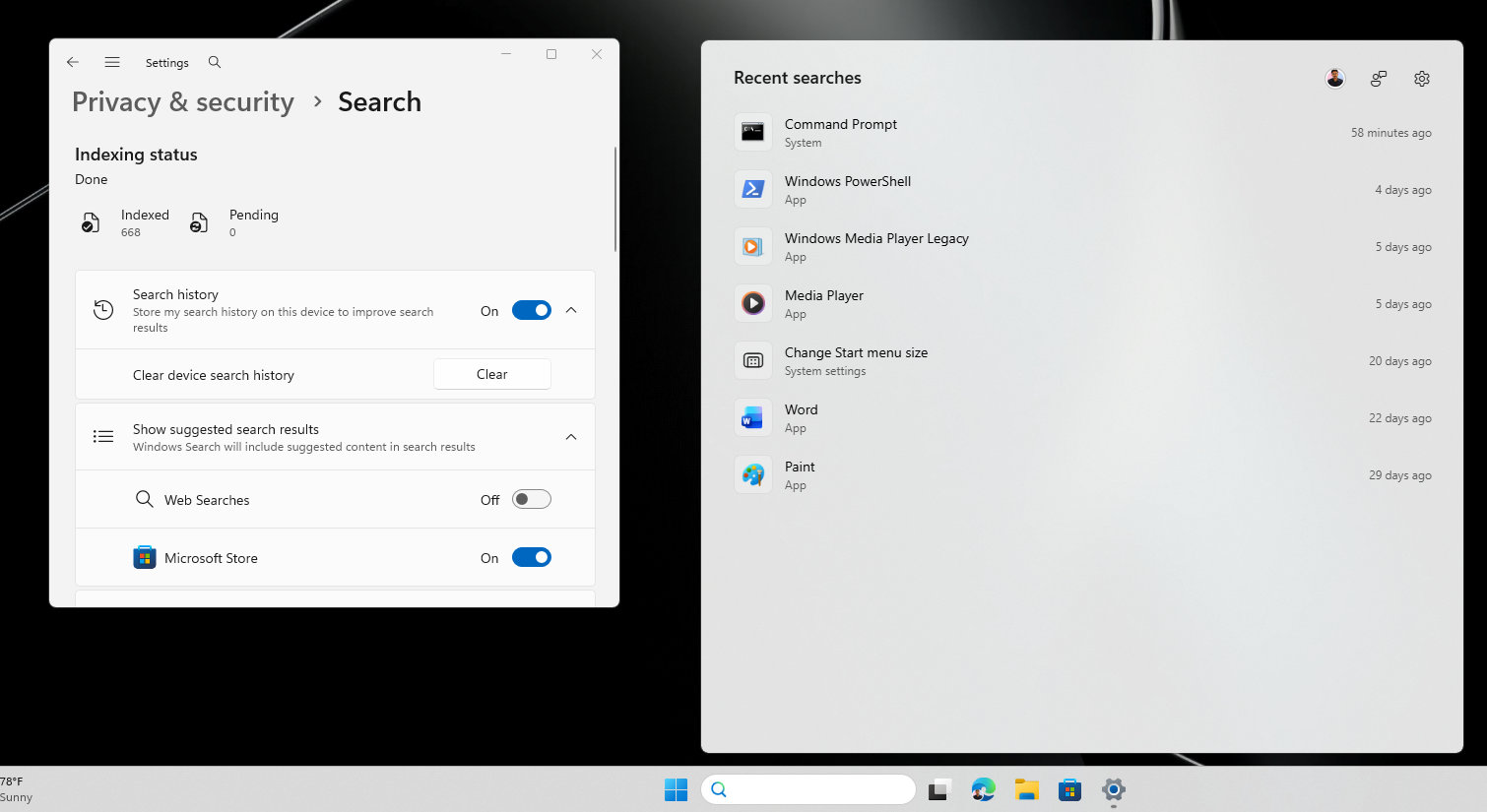
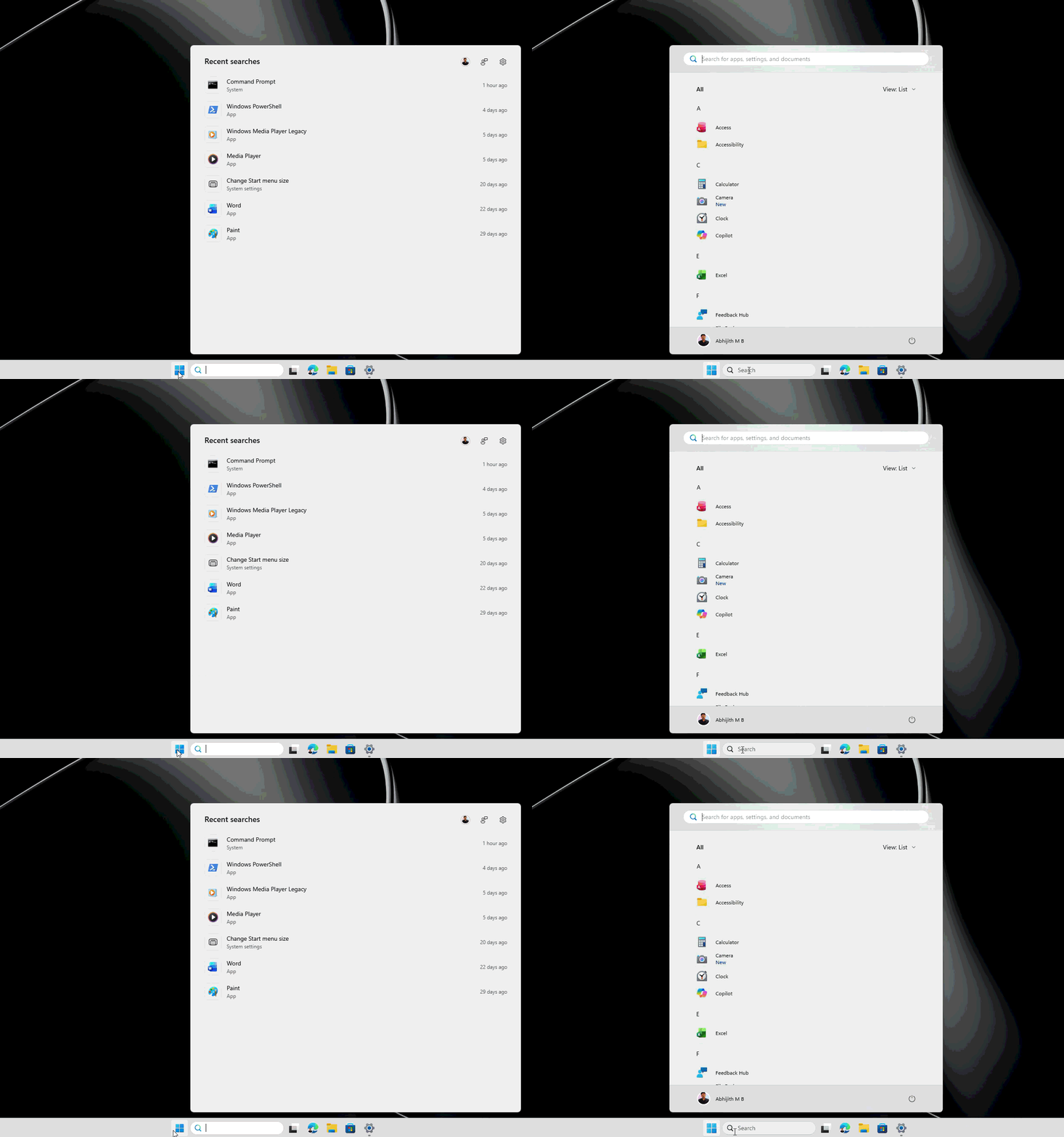
What’s amazing is that the mere lack of web suggestions, along with some Low Latency Profile magic, Windows Search opens faster than ever before. Note that this is an underpowered PC with dual cores and 4GB RAM running Insider Build.
Turning off Search history toggle in the settings page makes Windows Search show just the Suggested apps and settings:
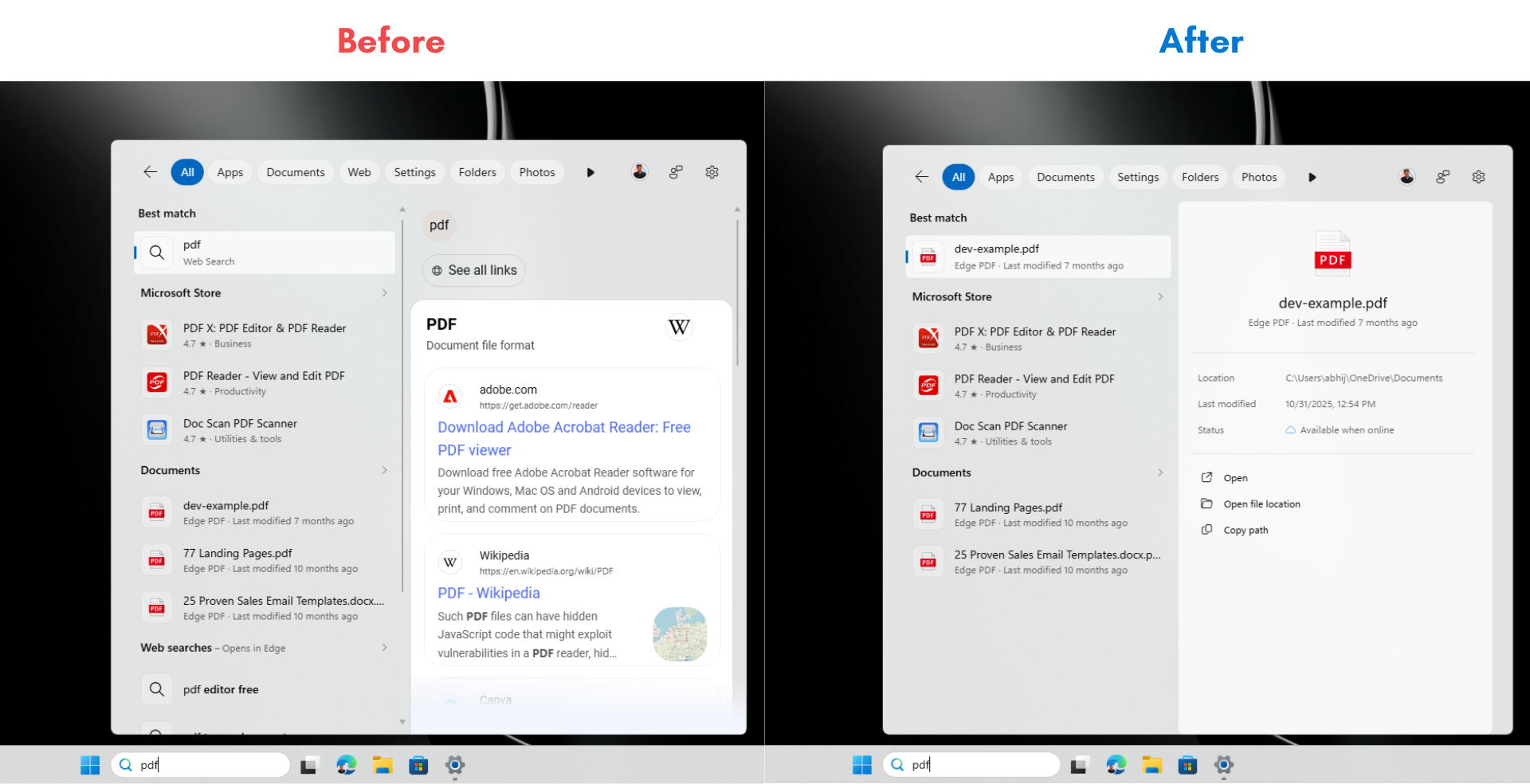
Searching for a term like “pdf” in the current stable Windows 11 build shows a Bing web result for PDF as the main highlight, with PDF editors from Microsoft Store above your local files. With the toggle off, the Best match immediately shows a local PDF file, the file type, last modified date, location, and quick actions like Open, Open file location, and Copy path. The Microsoft Store section appears below with PDF-related apps you haven’t installed, but web results are completely gone.
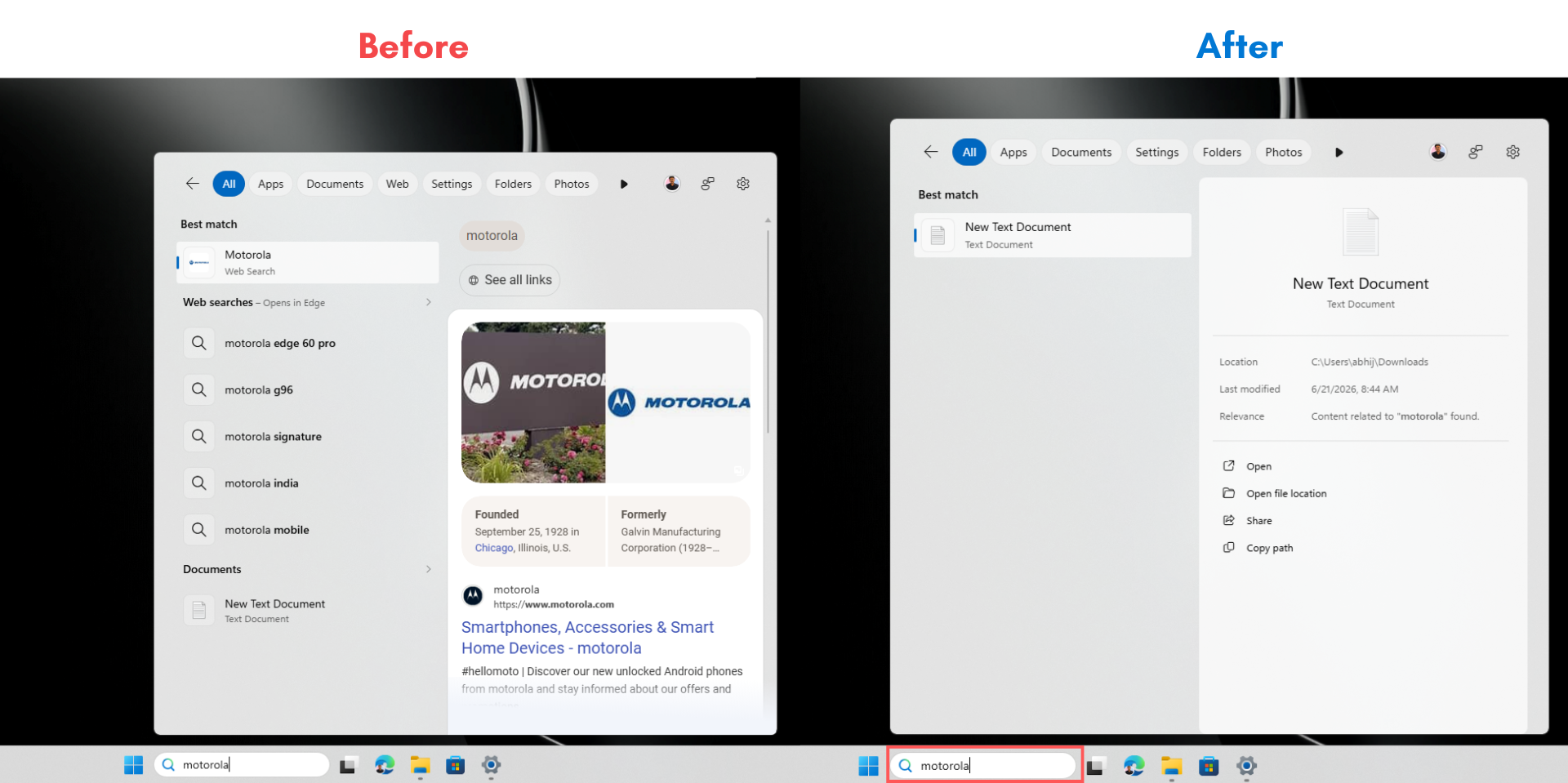
Content indexing also works well now. Searching “motorola” on current stable Windows 11 floods the panel with web results. With the toggle off, the Best match becomes a local text file, which only shows up because its content includes the word “motorola.” The file location is shown at C:\Users\abhij\Downloads, along with the last modified time, and it shows the relevance of the search as content related to “Motorola” found. Web results are nowhere to be seen.
Microsoft Store results can also be turned off separately in Windows Search
It’s great that the Web Searches and Microsoft Store toggles work independently. With Web Searches off but Microsoft Store still on, searching “call of duty” shows Call of Duty Warzone from the Store as the Best match, with more Store listings below. The preview panel even shows the Store page with the Get button, ratings, and game screenshots.
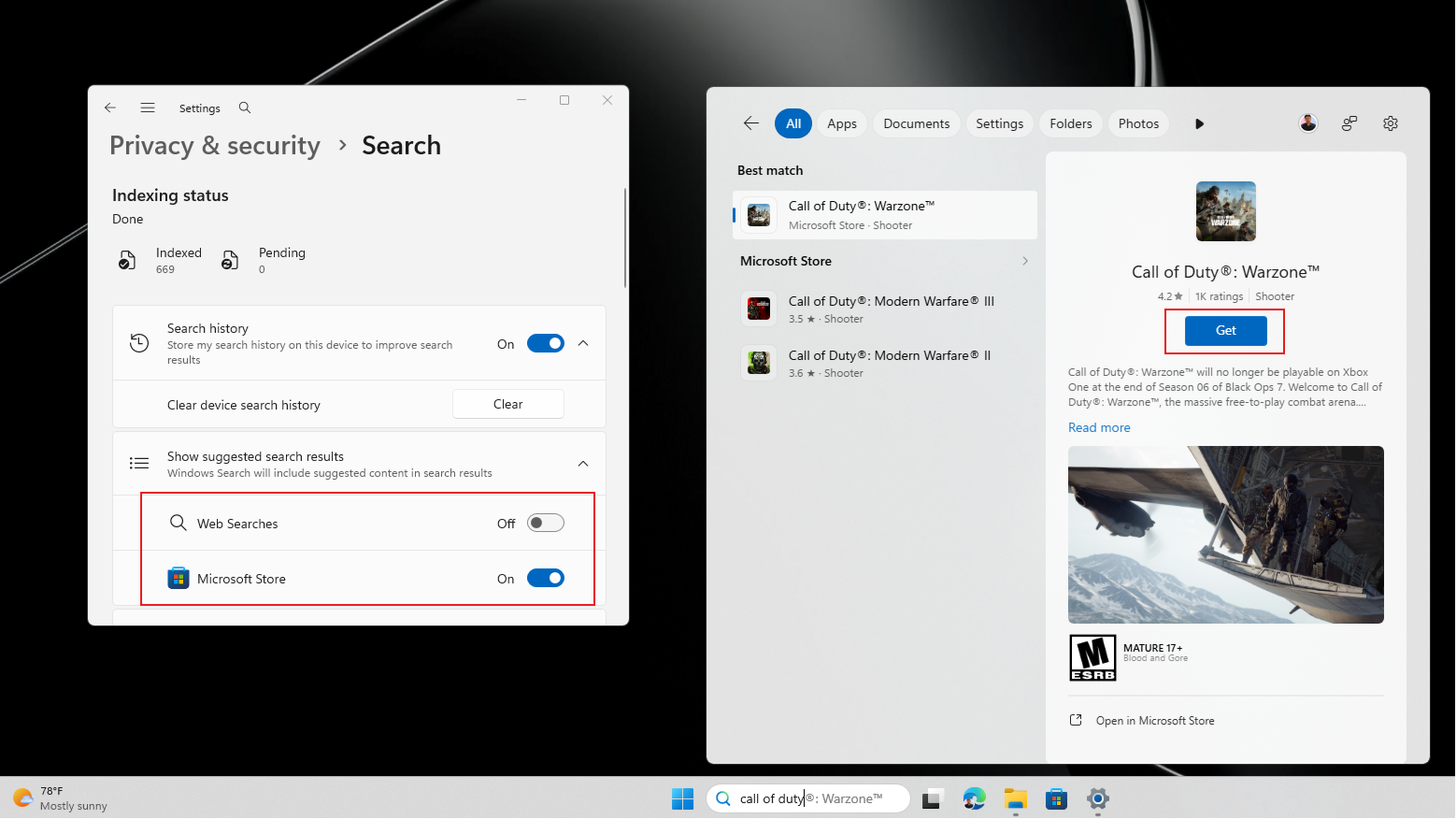
This is the way Search is supposed to be, and I will continue using Search with Microsoft Store enabled, just because the new update makes finding apps from the Store easier with Search.
Turn the Microsoft Store toggle off as well, and searching “call of duty” returns “No results found for ‘candy.'” Since there is no locally installed app or file matching that term and no Store or web source to pull from, Search comes up empty. If you want a strictly local experience with no unsolicited app suggestions, that is exactly the correct behaviour.
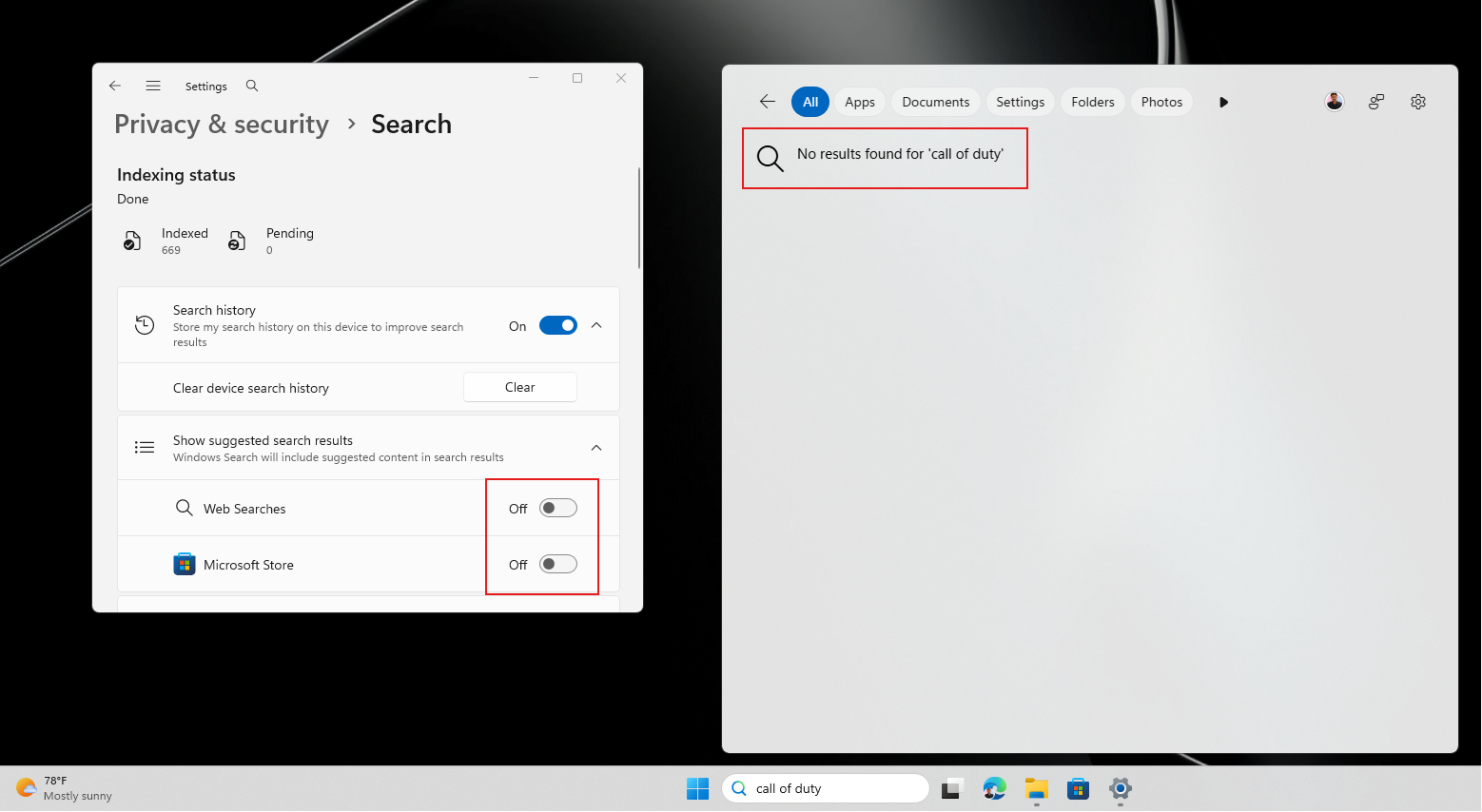
The Store toggle addresses a separate complaint that had been building since Microsoft added Store integration to Windows Search. When you search for something you don’t have installed, Search suggests Store downloads with a Get button inline. Some users find it useful; others see it as Search being used as a sales channel. Now you can turn both off independently.
In case you’re wondering, searching for Windows settings also works with both toggles turned off:
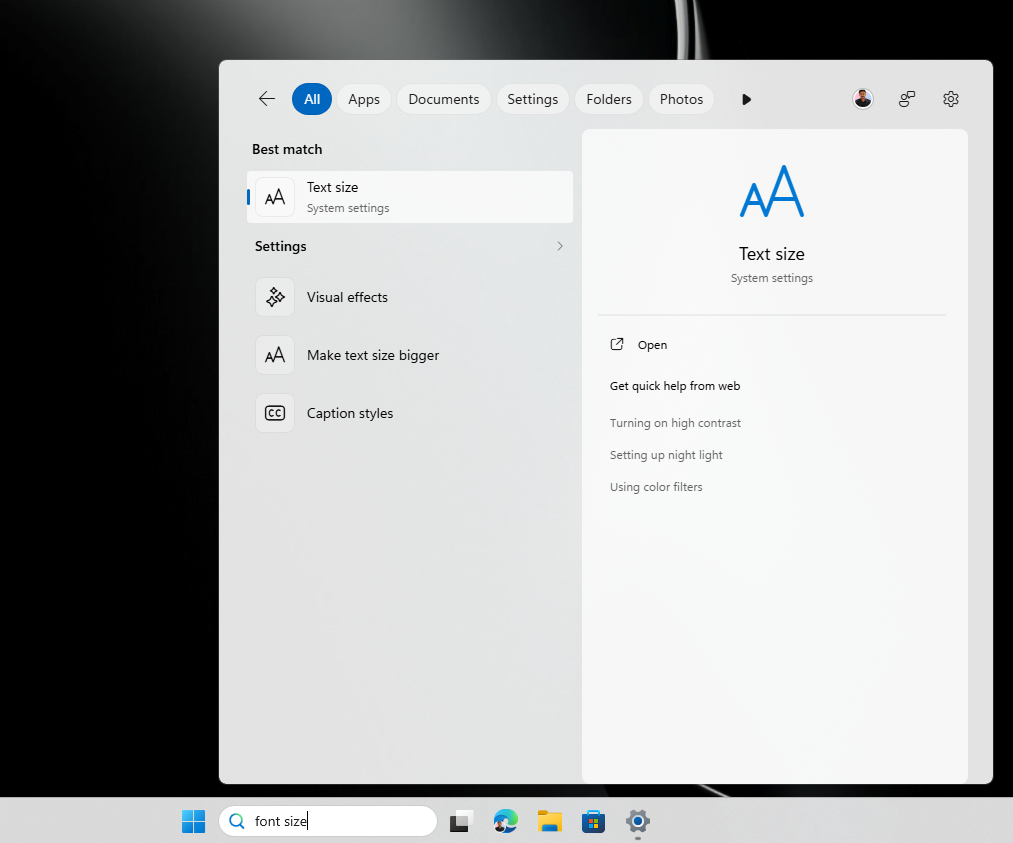
Also, the sheer improvement in Windows Search is compelling me to say it again that Windows Search with web results and Microsoft Store results turned off is by far the fastest version of Search I have felt in Windows. And I’m not talking about just Windows 11!
How to enable the hidden Windows Search toggle in Windows 11 build 26300.8697
The feature is hidden behind feature flags in Insider Experimental build 26300.8697 released on June 19, 2026. It is not rolling out to all Insiders automatically yet. On X, Microsoft watcher Phantomofearth shared the ViveTool IDs needed to force-enable it.
You need to download ViveTool from GitHub, extract it, and run Command Prompt as administrator. Then navigate to the folder where you extracted ViveTool and run the following command:
vivetool /enable /id:61267302,61344081,61482515,61532758,61760679
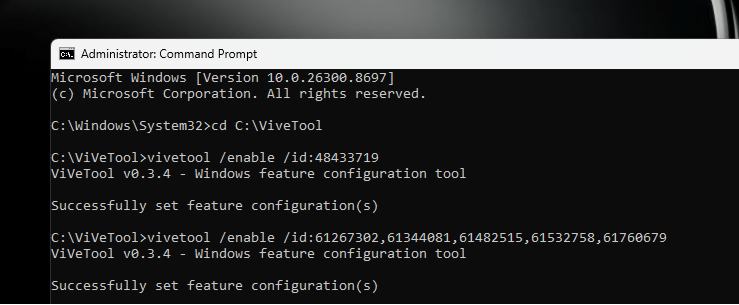
If the new experience does not appear after restarting, @phantomofearth notes that feature ID 48433719 must also be enabled, which it should be on most Experimental channel installs already. You can verify or enable it with:
vivetool /enable /id:48433719
After restarting, go to Settings > Privacy & security > Search and the “Show suggested search results” section with the Web Searches and Microsoft Store toggles should be visible. The feature is still experimental, so behaviour may vary between systems.
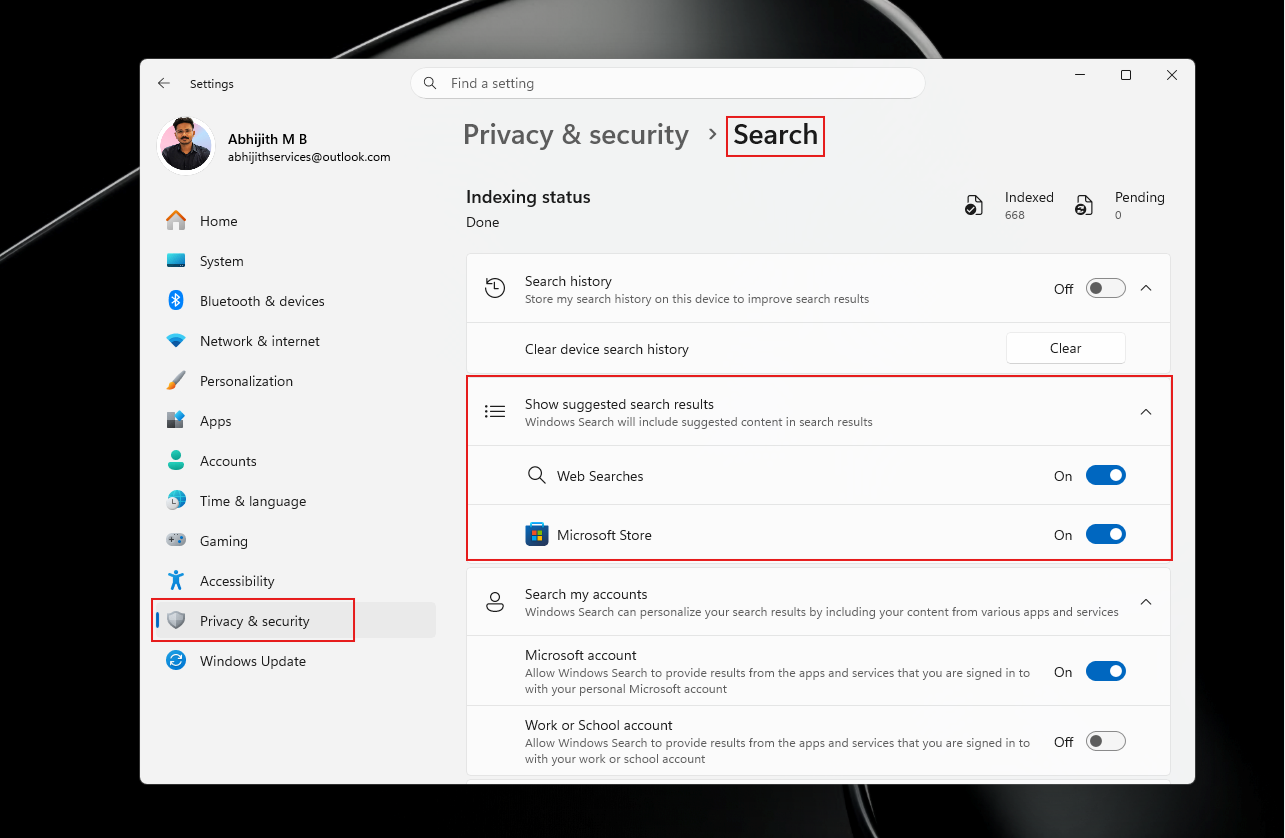
Turn off these toggles to experience Search without Bing.
Note that ViveTool is a third-party tool not supported by Microsoft and should be used at your own risk on Insider builds only.
More Windows Search improvements coming to Windows 11 in 2026
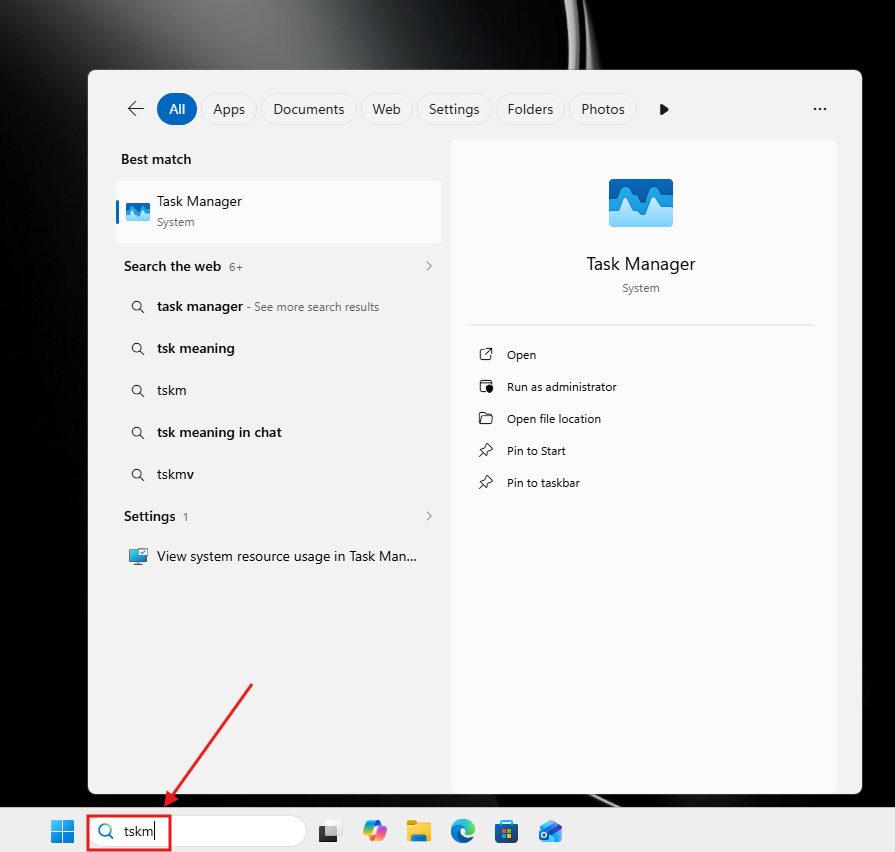
Windows Search is getting faster and more reliable too. As we reported last week, Windows Search is also getting typo forgiveness for app queries in Insider build 26300.8687. Typing something like “pwerp” now shows PowerPoint, and “tskm” finds Task Manager. Before this, spell-check in Windows Search was only applied to Bing web queries, never to local apps or files.
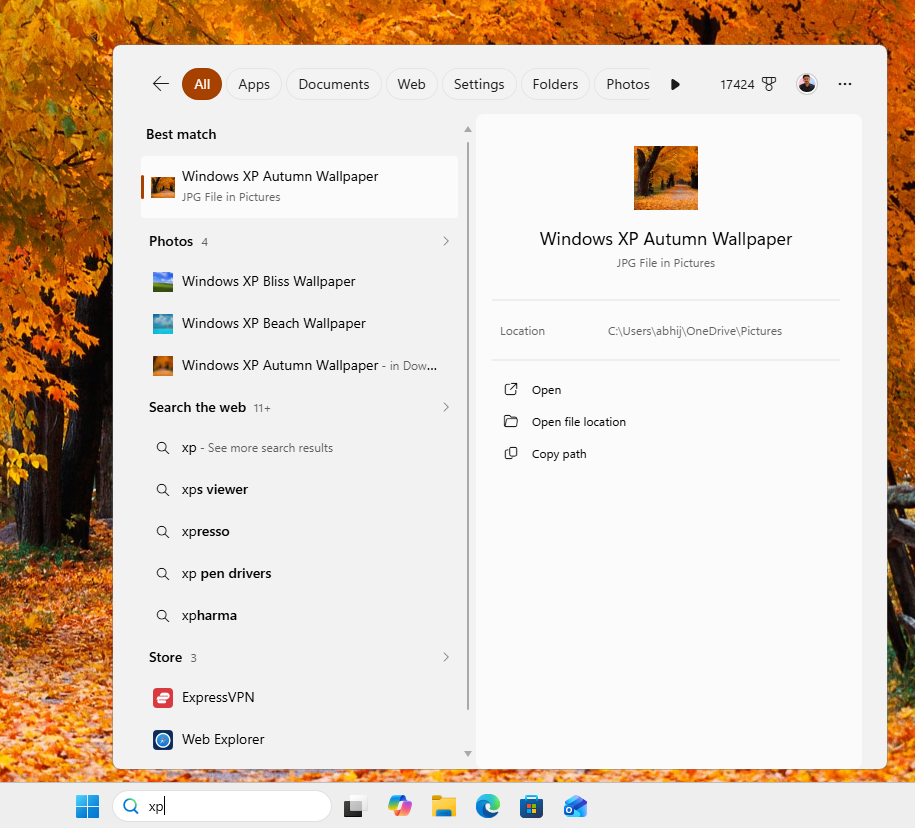
Search improvements have also already shipped to stable users via the June 2026 update (KB5094126). Search now triggers file results after just two characters instead of three, and substring matching for compound file names is in testing in Insider builds.
But there are more interesting things happening in the background. Microsoft is pulling back on its account and service lock-in across products. Microsoft Account requirements are being softened across products and removing Bing from Windows Search follows this pattern of the software giant giving users more control over their Windows experience instead of using the OS as a pipeline for Microsoft services.
As we noted in our comparison of Windows 10 and Windows 11 taskbars, the latter is also gradually getting more control back to users, making Windows Search feel more personal.
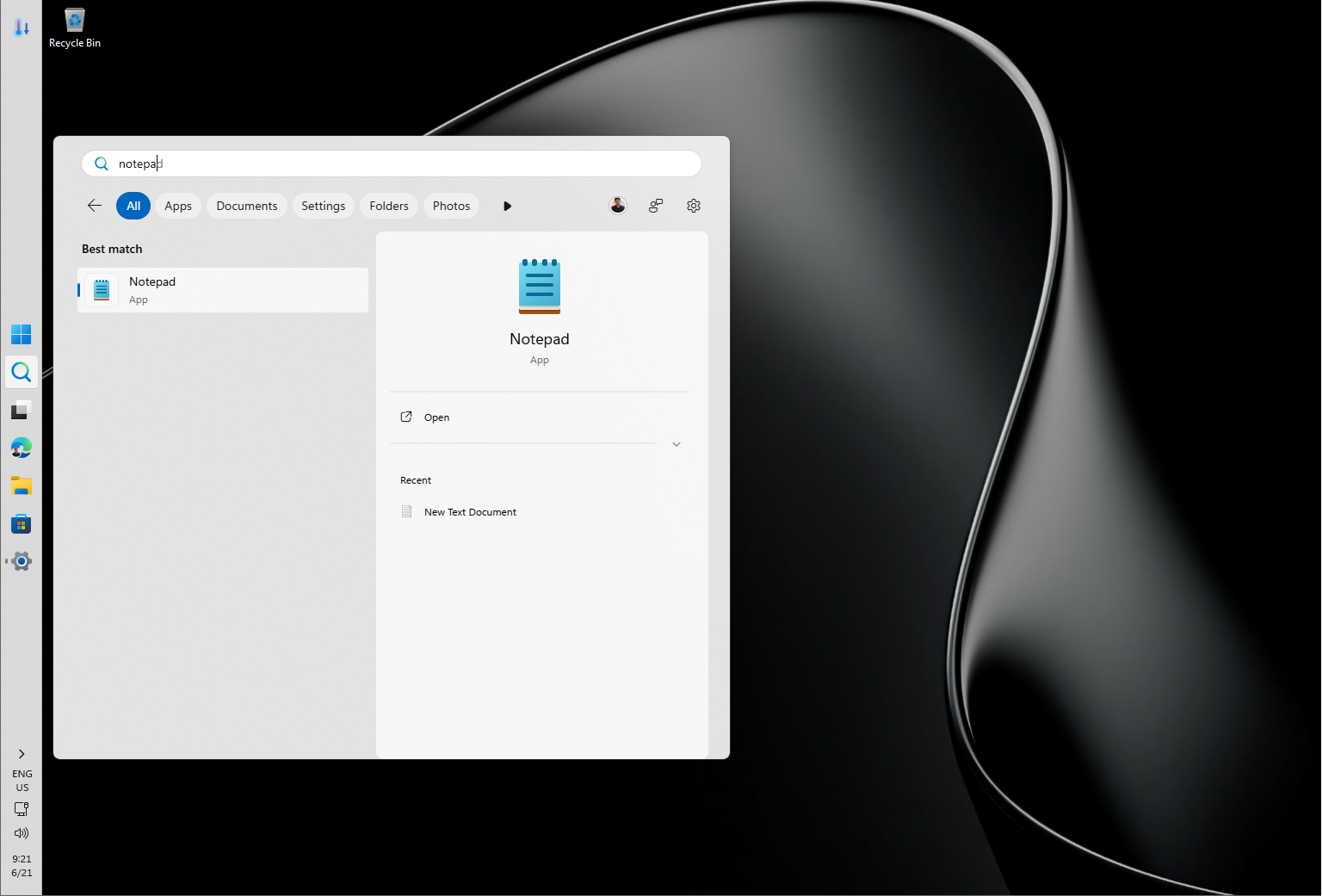
While Windows Search panel with no web results makes for a very welcome upgrade, what I also want is for Microsoft to make the Search UI itself less crowded by default as the web experiences make it feel inferior.
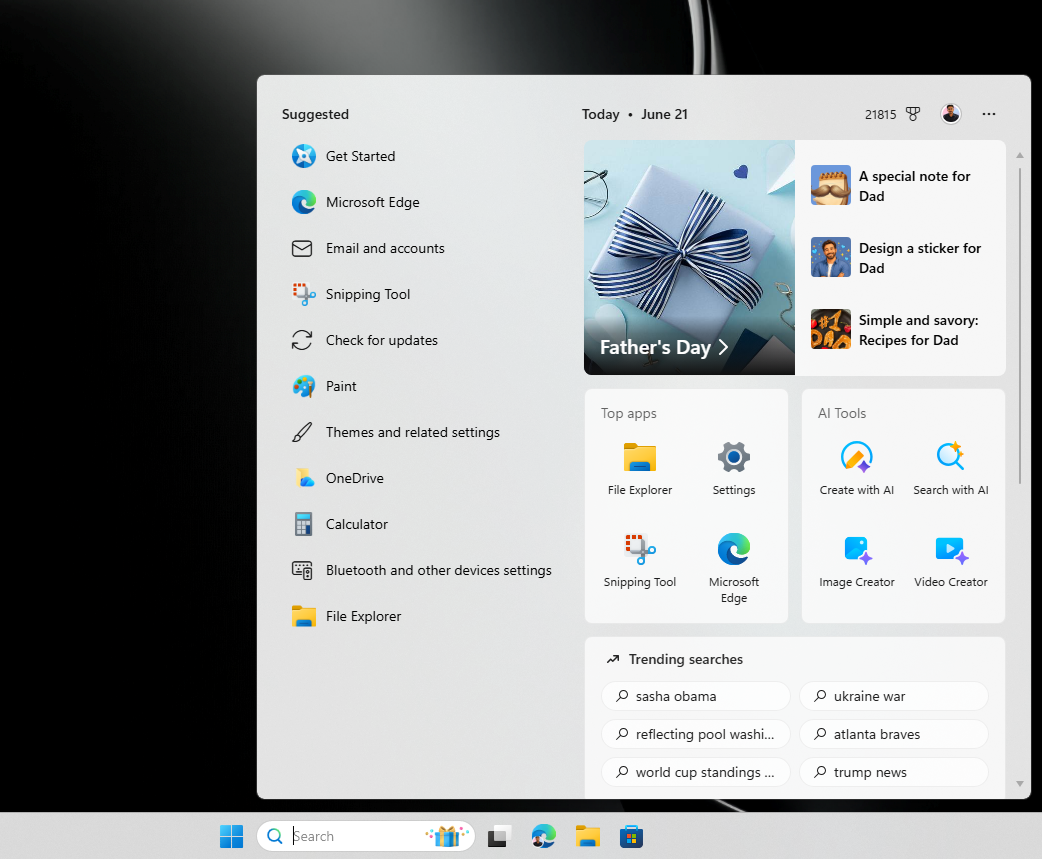
As of now, we have no official word on when these Search improvements are coming to regular Windows 11 users, but seeing the experience is as polished as expected, I expect to see them sooner rather than later.
The post Tested: Microsoft just debloated Windows 11 Search without Bing, and it’s crazy fast appeared first on Windows Latest